
New Unitheme2 Multivendor 4.19.1.a mega functionality that breaks the mold!
Vendor information in product lists
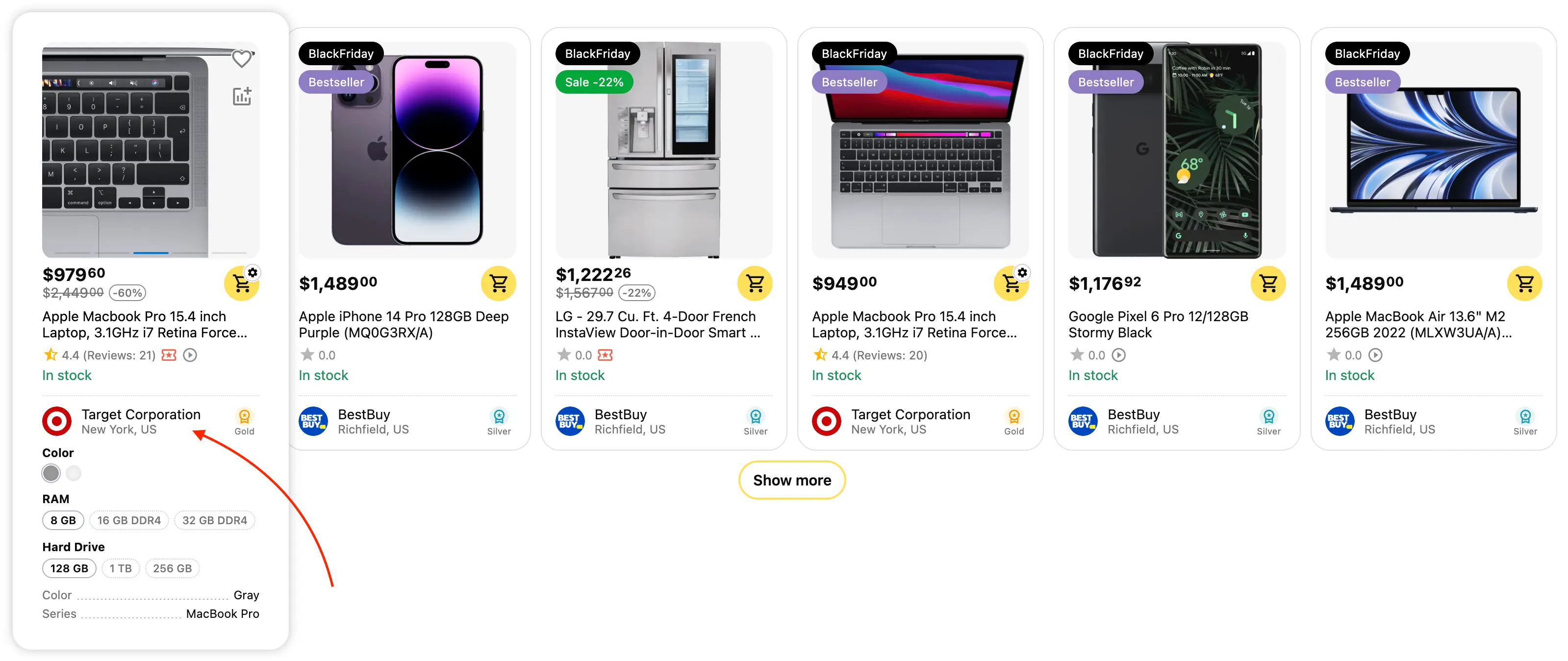
This update transforms the visual perception of your catalog from "ordinary online store" mode to "real marketplace" mode. Displaying the vendor's brand directly in the product preview is a key transparency element that directly influences buyer trust and their behavior on the site.
Marketing benefits of the feature:
- Building trust through transparency: In a multi-vendor environment, the buyer wants to know who they are buying from before clicking through to the product card. Seeing a familiar logo or vendor name immediately in the catalog makes the customer feel more confident and more willing to click on the product. This removes the barrier of "buying from a stranger".
- Improved User Experience (UX) and navigation: Customers often look for products from specific vendors they trust. This feature allows them to "scan" the catalog with their eyes and instantly find the brands they need without spending time entering each product and returning to the category. This significantly speeds up the selection process.
- Increasing platform value for your Vendors: Vendors receive additional branding and advertising space on your platform for free. Their logos now appear in general categories, increasing their store's recognition. This is a strong argument for attracting and retaining quality sellers on your marketplace.
- Increased viewing depth (with active links): If the direct link to the vendor option is enabled, the buyer can go from the general catalog to a specific vendor's storefront in one click. This stimulates cross-selling within one seller's assortment and increases the time spent on the site.
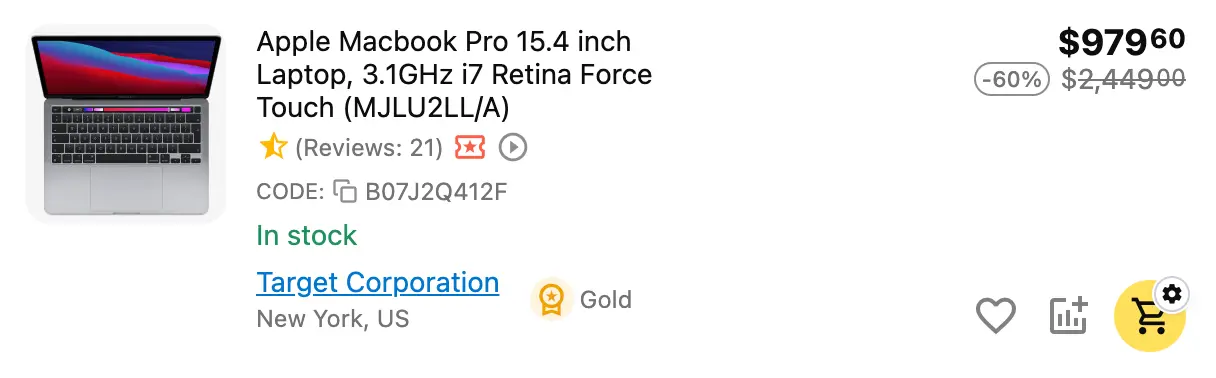
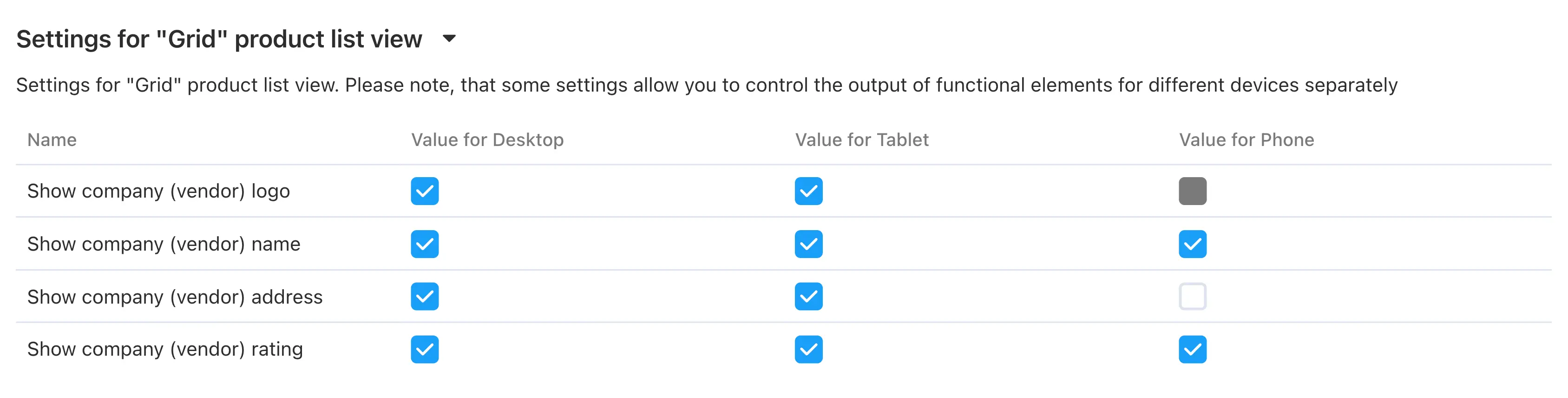
Available settings: vendor logo, vendor name, vendor address, vendor rating. You can configure the display of vendor information in all main product lists, with the ability to change visibility for each device separately.
"Vendor Information" block on the product page
This functionality adds a special information block dedicated to the vendor of the specific product to the product page. Its goal is to increase buyer trust and provide key information about the seller "here and now", without leading the client away from the purchase page.
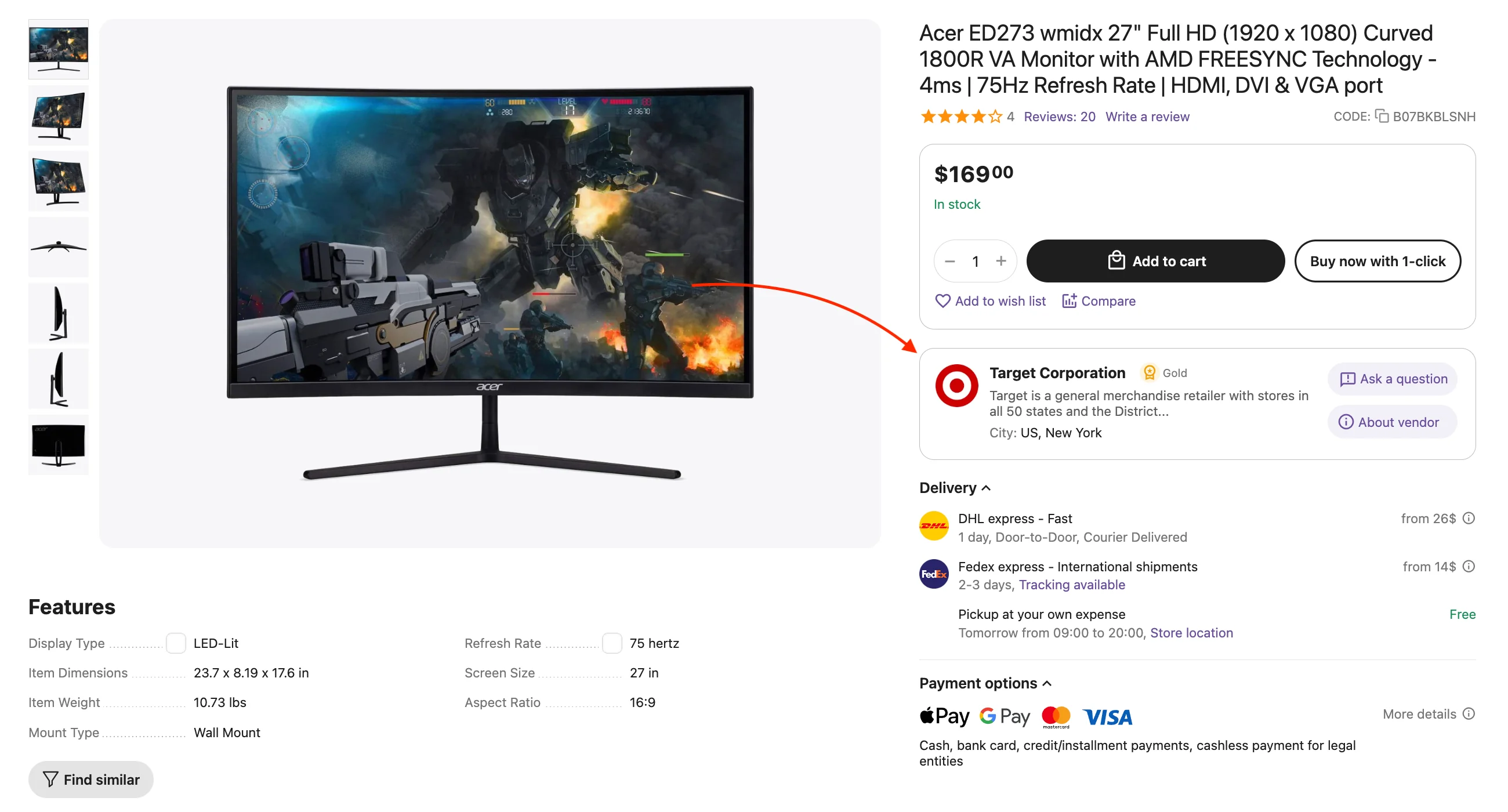
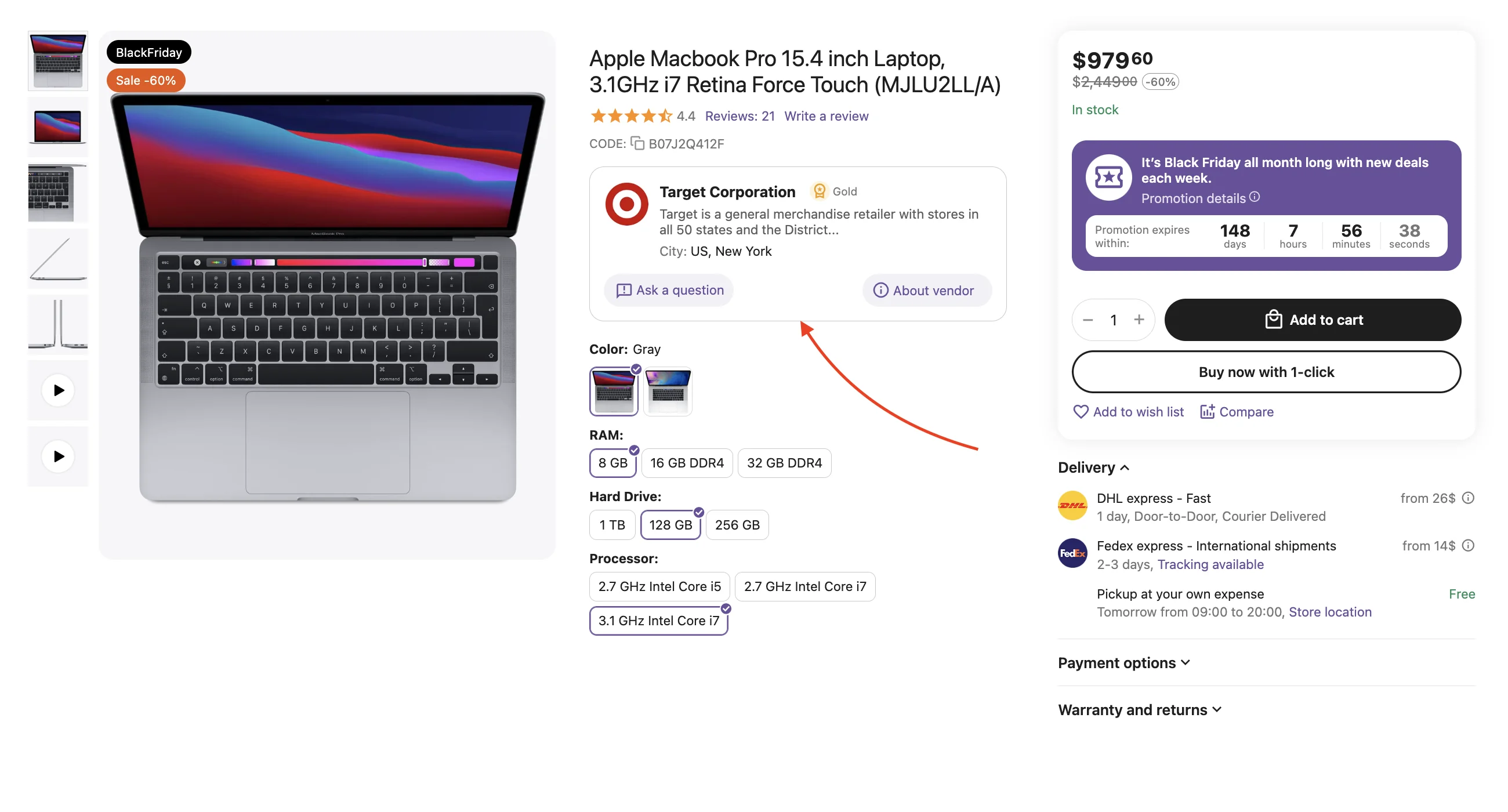
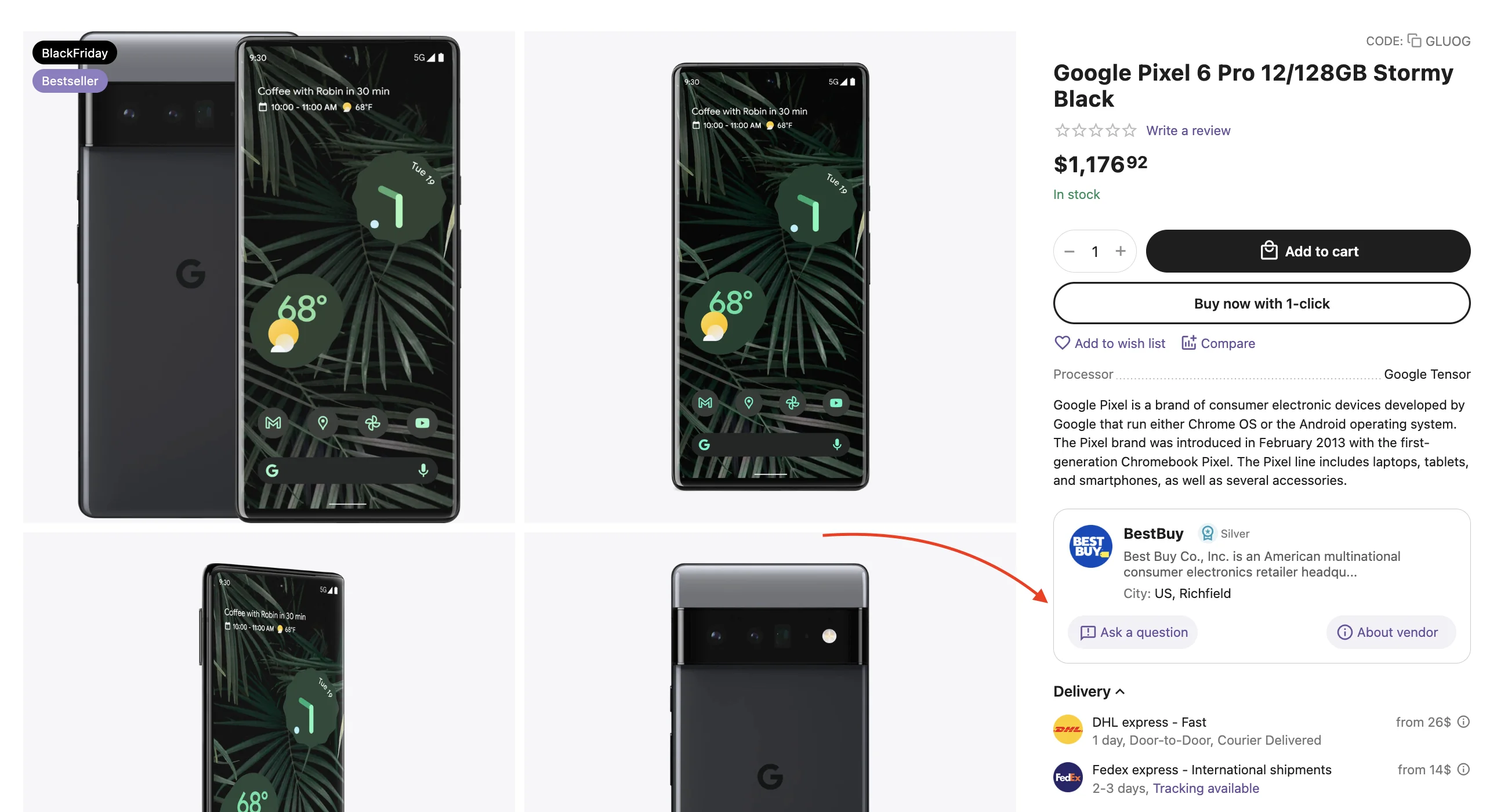
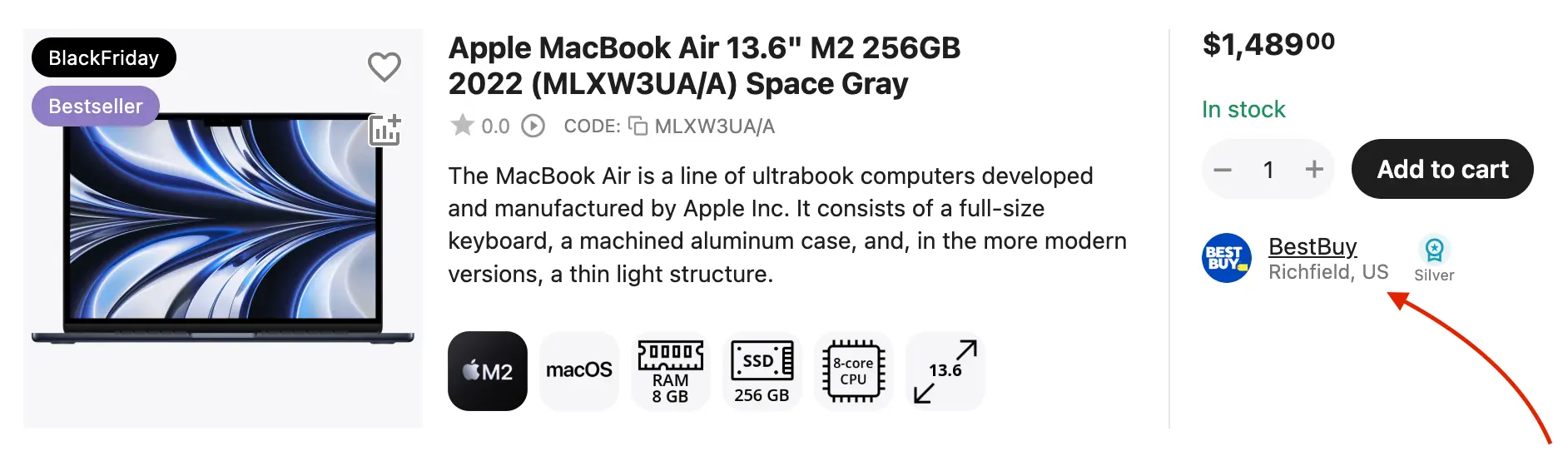
In its compact view, it highlights key trust factors: a compact vendor logo (brand visual identity), vendor name, a short text snippet about the vendor, vendor city and country, and functional “Ask a question” and “About the vendor” buttons.
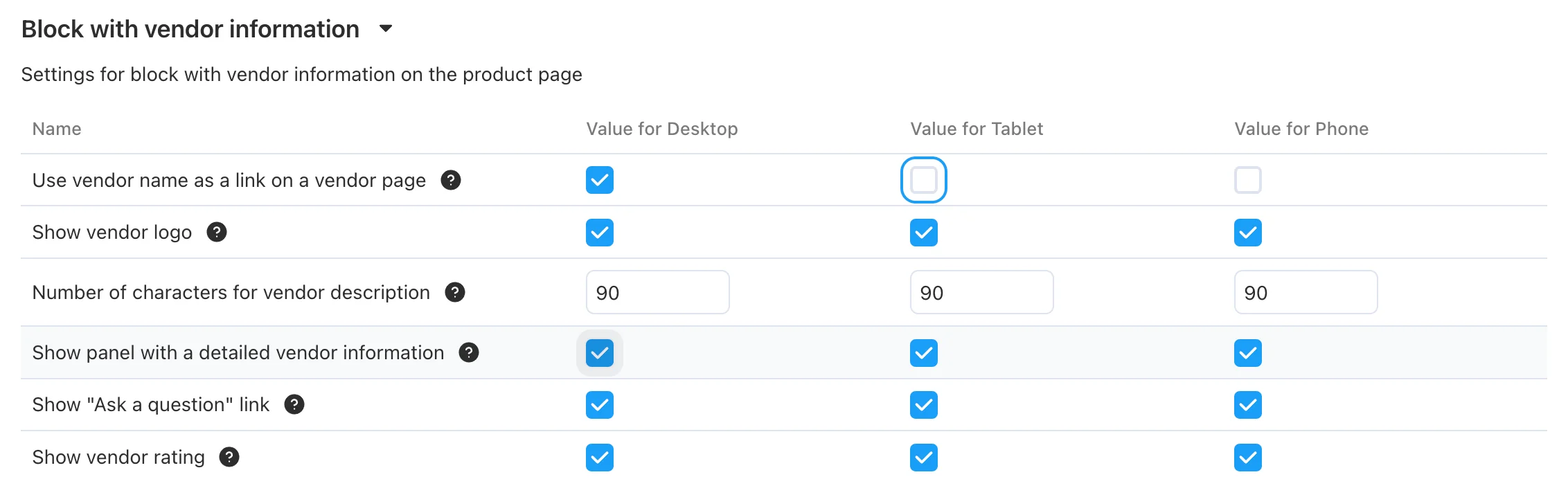
In the theme settings, you can control the visibility of all block elements:
- Use vendor name as a link on a vendor page
- Show vendor logo
- Number of characters for vendor description
- Show panel with a detailed vendor information
- Show "Ask a question" link
- Show vendor rating
Sidebar advantages:
The "About vendor" button (marked with a red arrow in the screenshot) in this block has a dual function depending on the "Show side panel with detailed vendor information" setting:
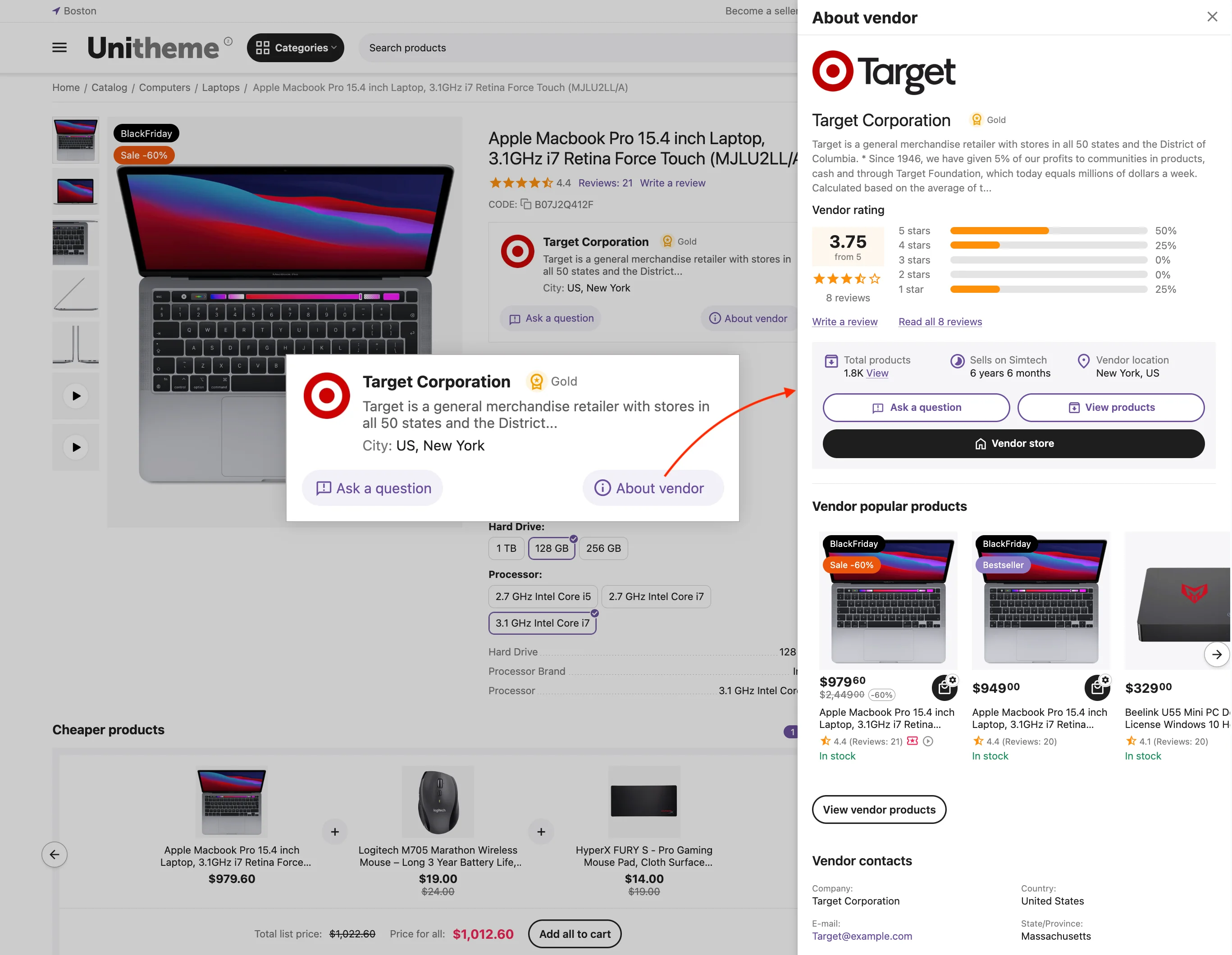
If the setting is inactive: the button works as a standard link. Upon clicking, the user leaves the product card and goes to the vendor's separate profile page on the marketplace.
If the setting is active: clicking the "About vendor" button activates the Sidebar. It slides out smoothly from the side, covering part of the content but without reloading the page.
- Customer Retention: The most important advantage — the client remains on the product page. They do not interrupt the selection and purchase process. After studying the vendor information, they simply close the panel (with the X) and can immediately add the item to the cart.
- Maximum Information: The sidebar duplicates and expands all information from the vendor page:
- brief and full company description;
- detailed rating with a star histogram;
- statistics (number of products, country and region, time on the platform);
- "Vendor's popular products" block (cross-selling);
- contact details;
- any other blocks placed on the layout page (AB: About vendor).
"Vendor information" block on the vendor products page (Vendor categories)
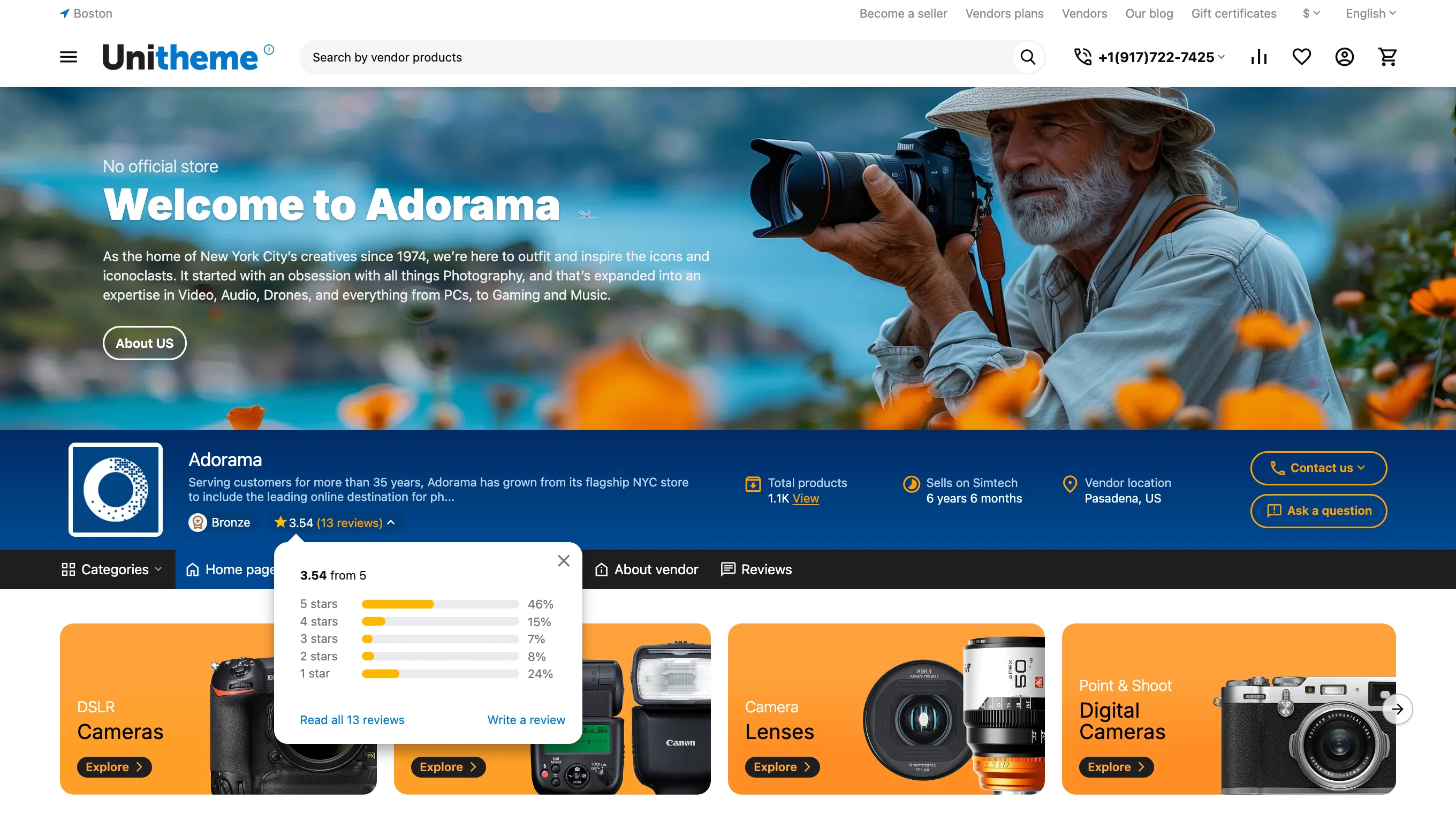
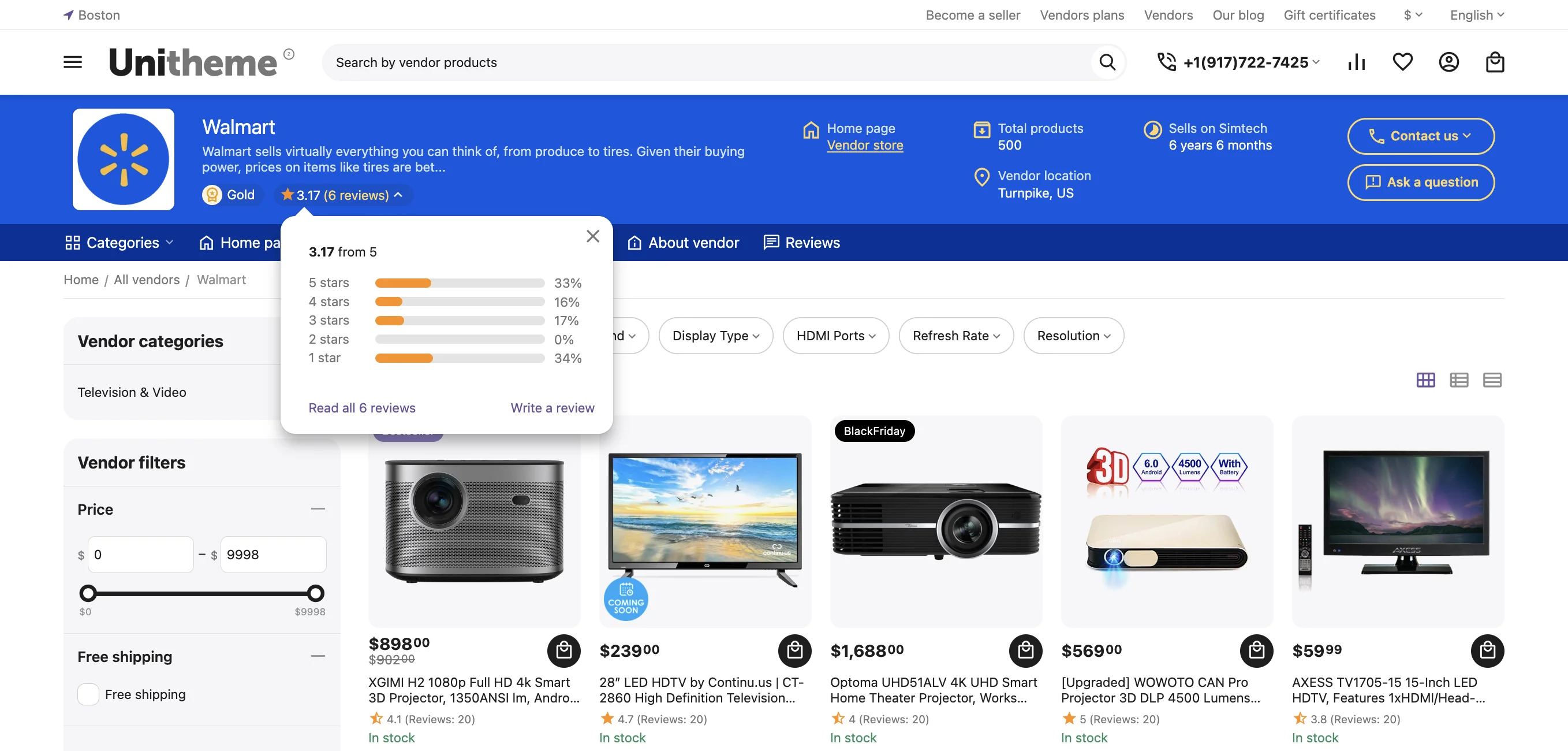
This block is a universal branded "header" placed above the catalog of all products of a specific vendor. It consolidates key vendor data (logo, name, short description, overall rating and vendor review rating, motivation elements, and functional buttons (Contact vendor, Contacts, Vendor homepage)) providing navigation through their personal sections.
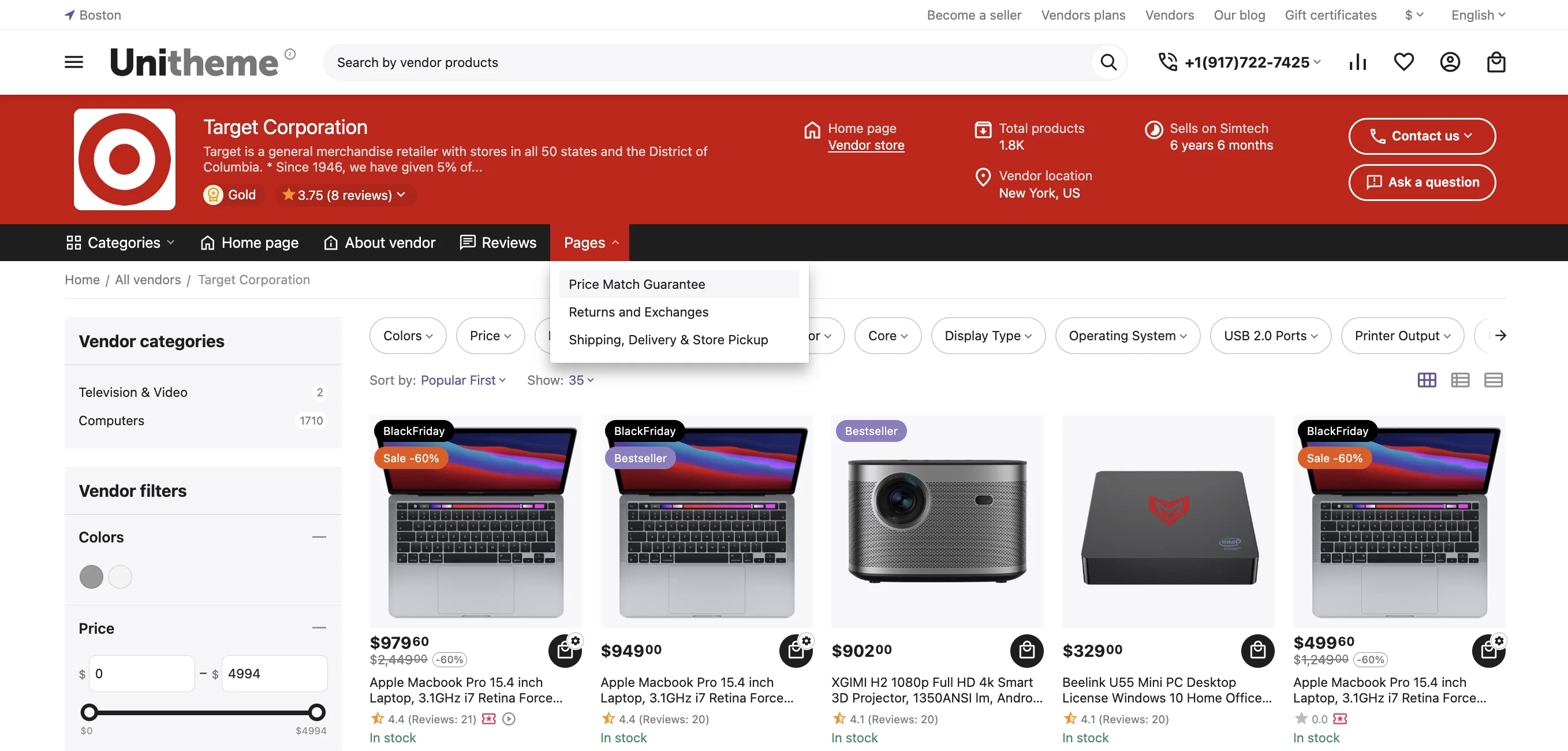
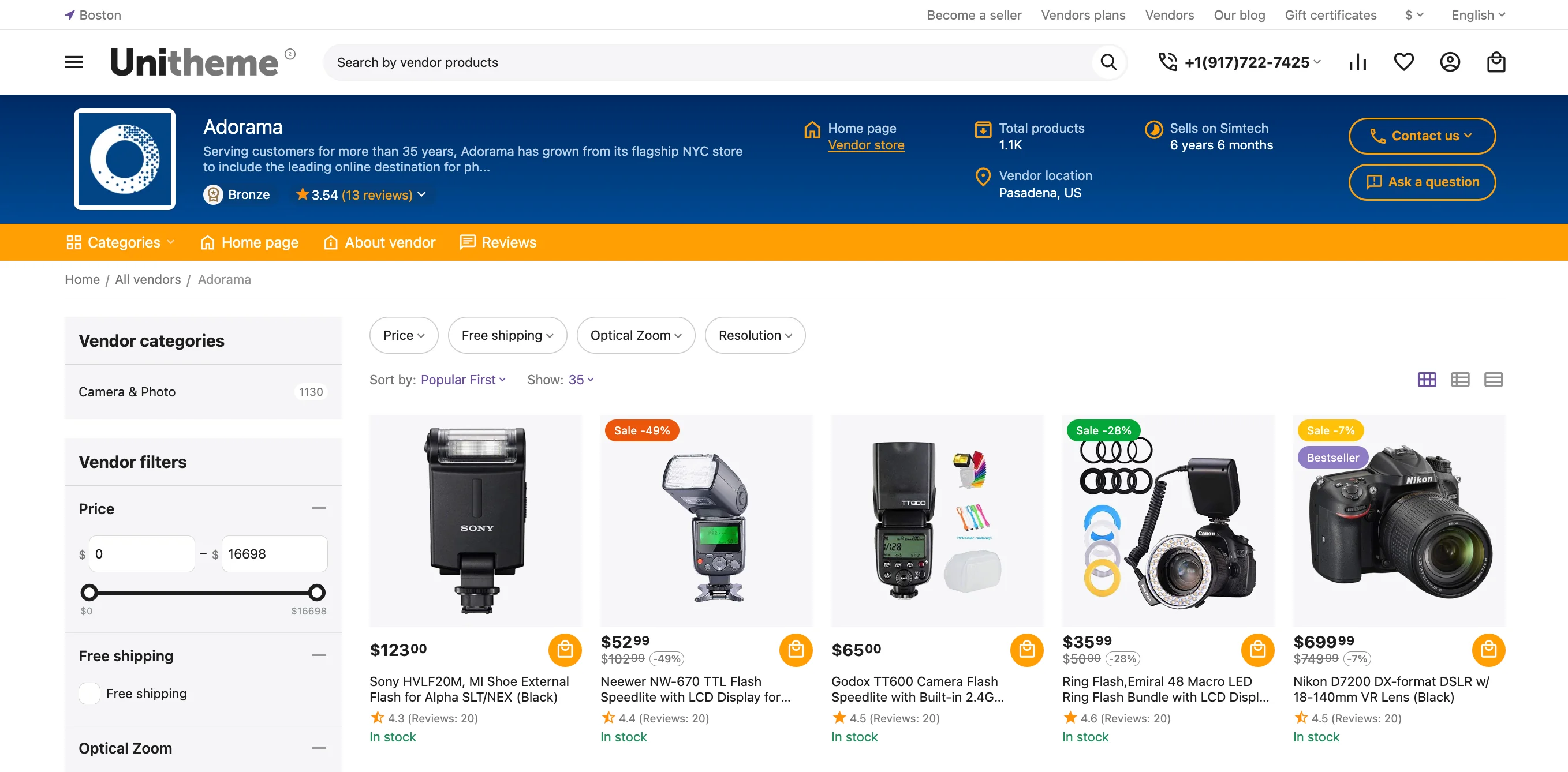
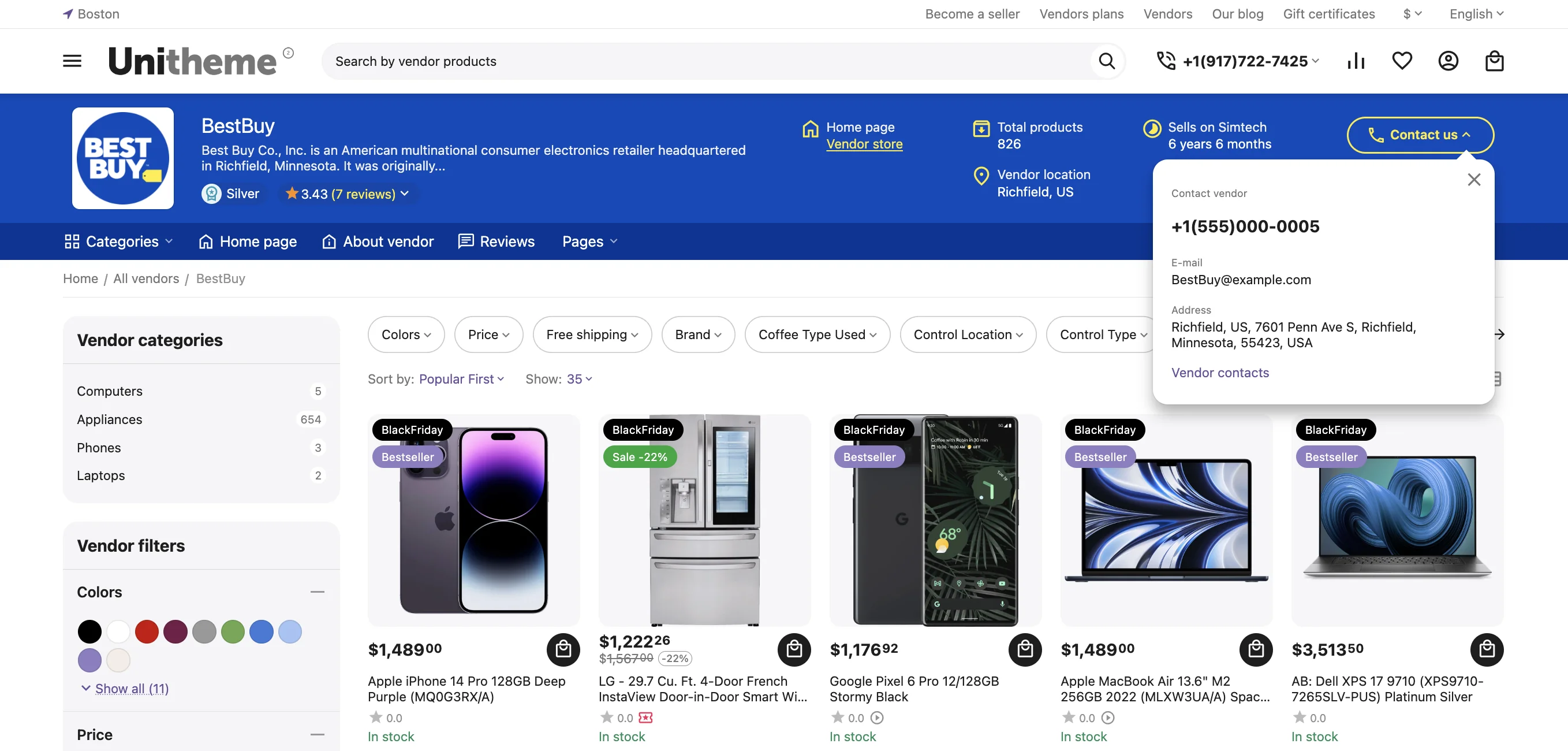
Dual role of the block depending on the vendor plan:
This block is critical as its role changes depending on the vendor's capabilities on the platform:
- For vendors with a basic plan (No Homepage): If the vendor cannot create a separate customizable Homepage with banners and promo blocks, the product list page with this "header" becomes their main and only storefront. In this case, the key information block — is the only branding tool that turns a faceless list of products into something resembling a personal store.
- For vendors with a premium plan (With Homepage): If the vendor has a full-fledged Homepage (landing page), this block on the product list page ensures unified style and navigational consistency. When a buyer transitions from the vendor's beautiful Homepage to their catalog, they don't "fall out" of the branded space — the "header" preserves the context and provides convenient access to the menu and contacts.
Benefits for marketplace clients
- A single point of trust in the catalog: Browsing the product list, the client always sees "who is in charge here". Rating, status, and tenure, fixed at the top, constantly reinforce trust in the presented assortment.
- Quick access to information in shopping context: While in product selection mode in the catalog, the buyer can clarify shipping or return conditions for this specific vendor in one click via the menu in this block, without returning to their homepage or general profile.
Benefits for the vendor
- Critically important branding for small business: For small vendors on basic plans, this block — is the only opportunity to stand out from the crowd and look professional without having a full landing page.
- Retaining the customer within their catalog: The navigation menu ("Pages", "Reviews" tabs, etc.) in the block allows the client to travel through the vendor's information sections, always returning to their products instead of leaving for the general marketplace catalog.
- Professional assortment presentation: Even if it's just a list of products, having such a "header" with a logo and credentials increases the perceived value and seriousness of the vendor in the buyer's eyes.
Block settings
The Vendor information (for vendor products page) block is located in the layout (AB: Vendor products), the store owner can configure all displayed elements as desired.
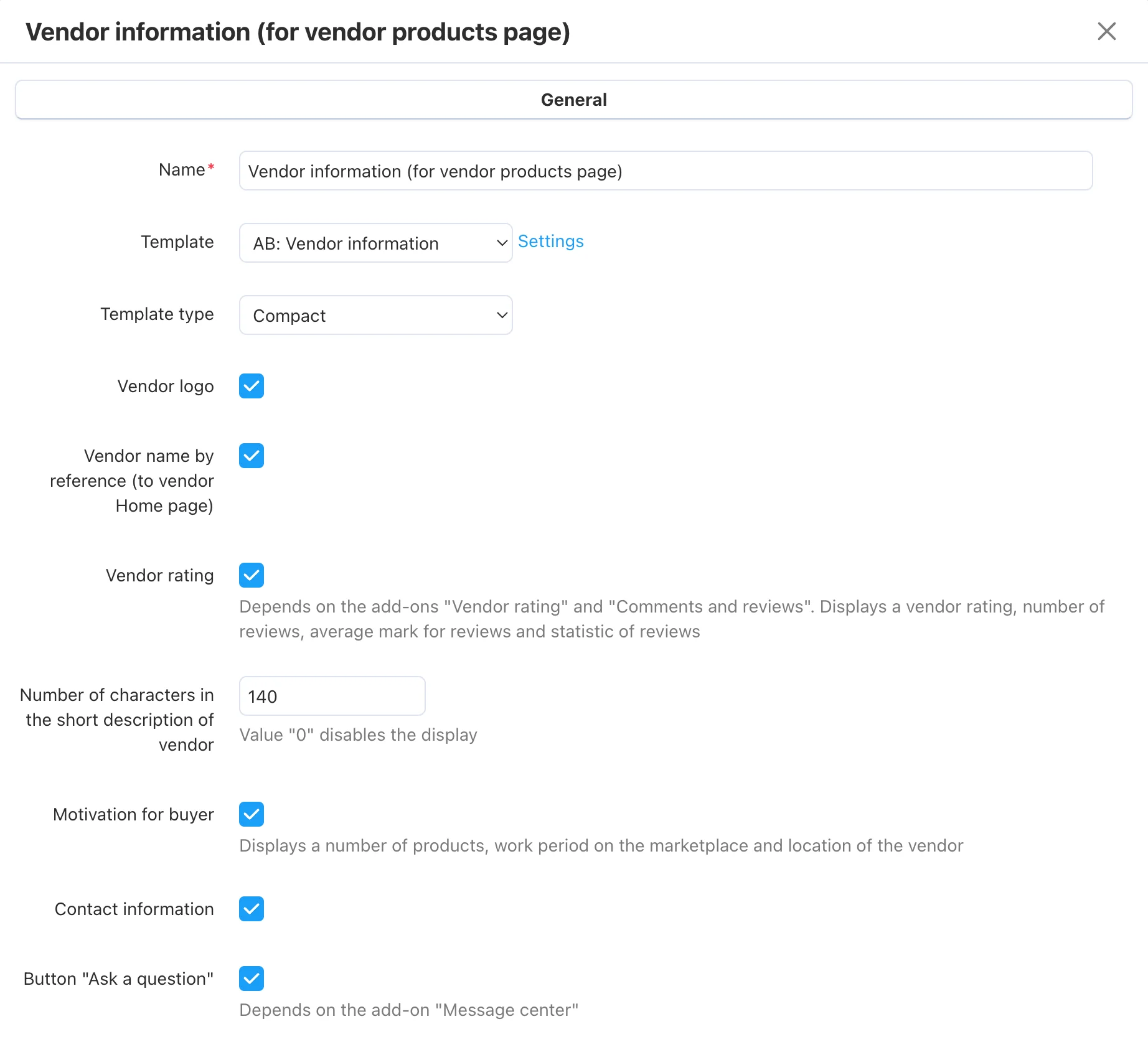
- Template type: Display variability
- Vendor logo
- Vendor/Brand name with a link to the Homepage (if available in the vendor's plan)
- Vendor rating (Depends on "Vendor rating" and "Comments and reviews" add-ons. Displays vendor rating, number of reviews, average review score, and review statistics.)
- Short description about the vendor (in characters)
- Motivation blocks (Displays total number of products, time on the marketplace, and vendor location)
- Vendor contact information block
- Button (Ask vendor a question)
Full branding of the vendor information block: individual storefront style
On a marketplace where hundreds of sellers use the same page structure, visual uniqueness becomes a key competitive advantage. This functionality allows the vendor to move away from the "template" design of the platform and design the "header" of their storefront in accordance with their own corporate style (brand book). This turns the product list page from a faceless catalog into a recognizable space of a specific store.
What each setting element offers:
In the vendor settings under the "Style" tab, branding settings are available, allowing each vendor, regardless of their tariff plan, to create a unique visual experience for their clients, increasing their brand recognition within the large platform.
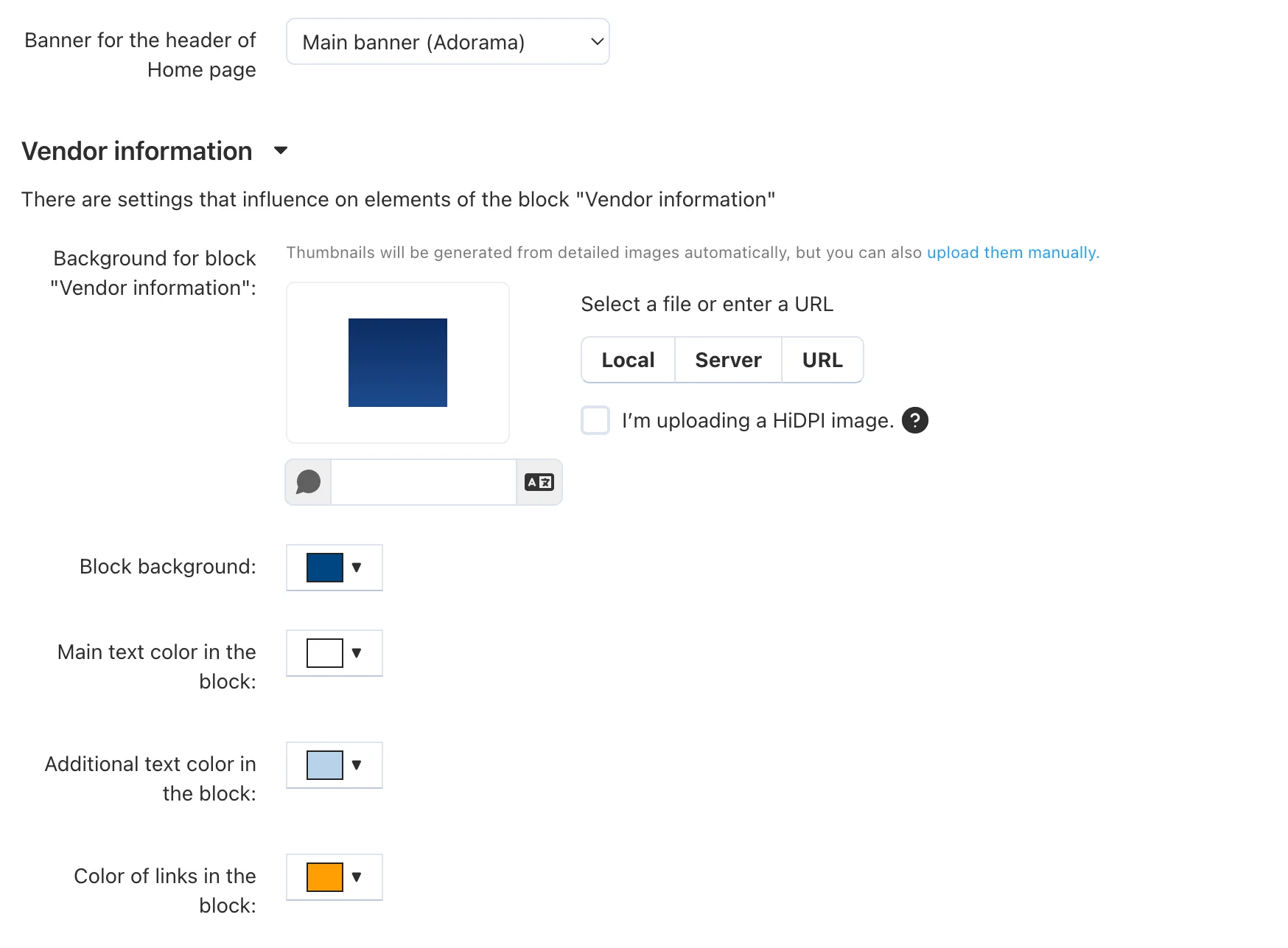
- Main banner on vendor homepage
Allows selecting a previously created banner (placed at the top of the homepage), it has increased dimensions and is intended for a main promotion or emphasizes the company concept.
- Background image or background color:
Allows uploading a wide-format image or filling the block with a corporate color instead of the standard white/gray marketplace background.
- Main text color and secondary element text color:
Provides the ability to adapt font colors to the selected background to ensure maximum readability.
- Link and button color:
Allows recoloring interactive elements ("Contact vendor" buttons, "Contacts", links) to the brand's signature accent color.
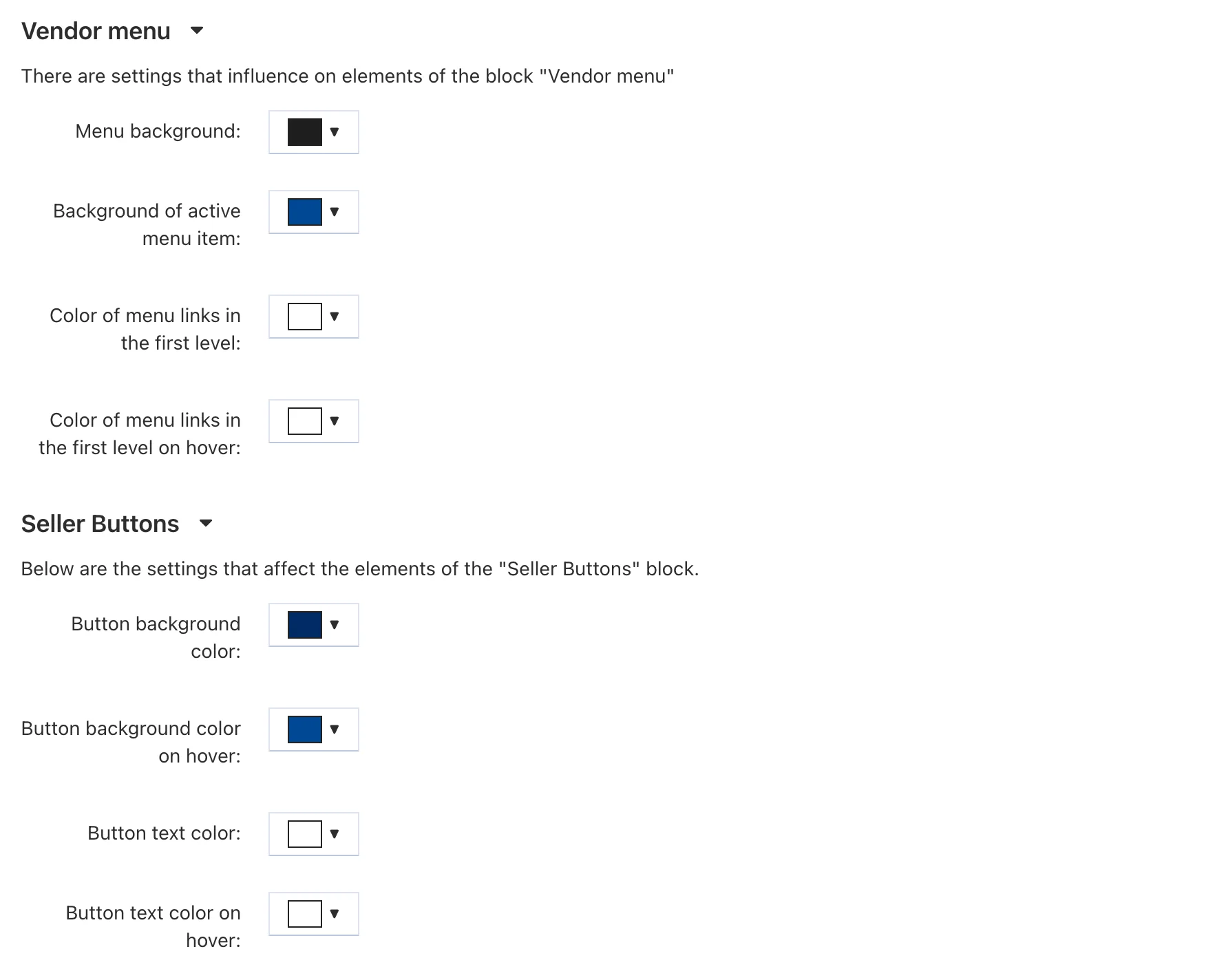
In the "Vendor Menu" and "Vendor Buttons" sections: you can also set personal colors for menu elements and "Add to cart" buttons. The design will be applied to the "Vendor Menu" and "Add to cart" buttons on all vendor pages with the active Vendor information (for vendor products page) block.
Vendor homepage
This is a premium feature that turns a vendor account on the marketplace into a full-fledged, independent online store with its own marketing tools.
The page displays: Main Banner, Vendor Information, Vendor Product Search, Vendor Menu, and a set of blocks that the vendor can add independently.
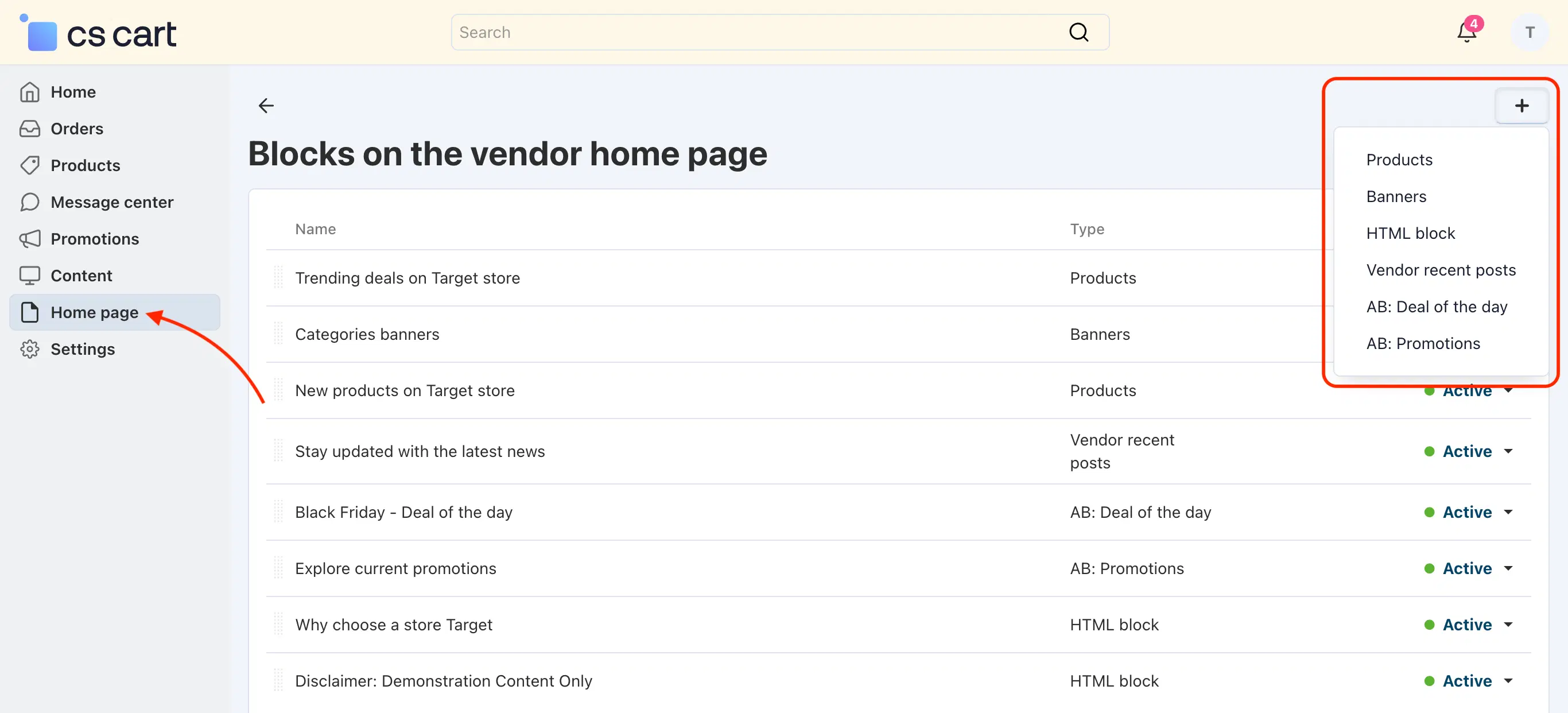
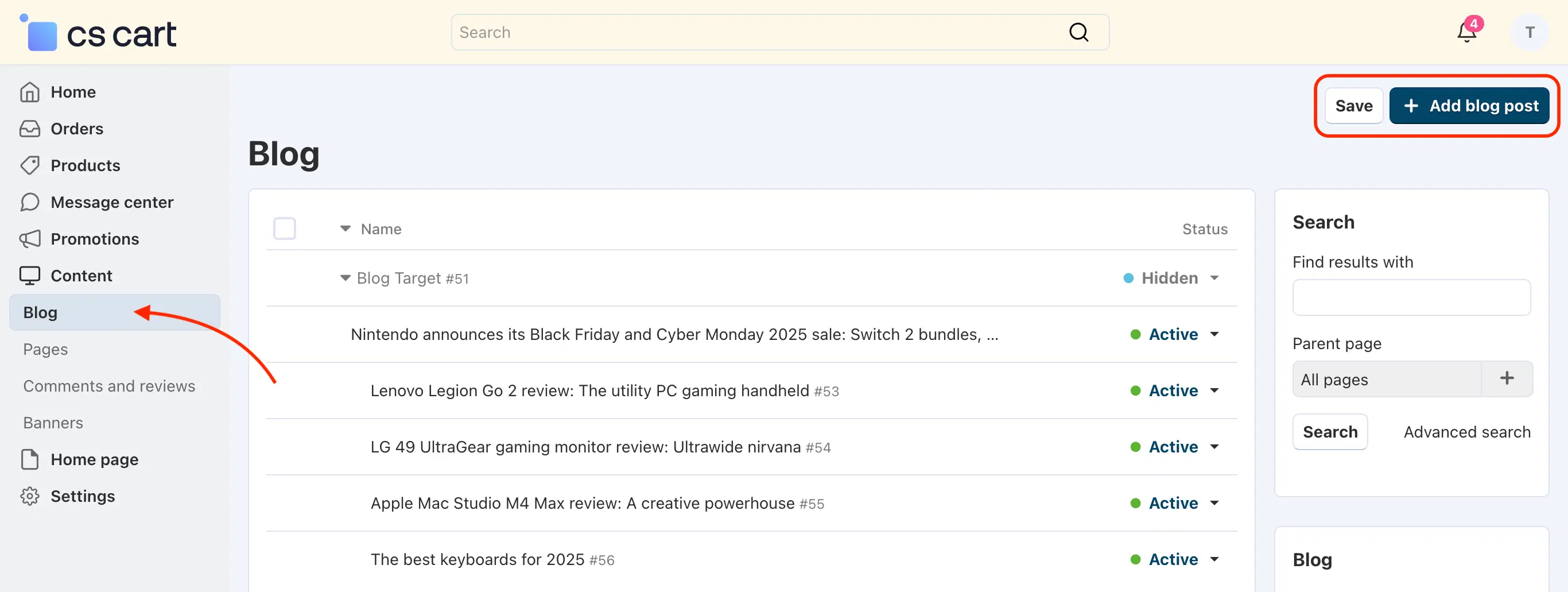
In the vendor panel, the "Micro store" (Homepage) menu item is available. By creating the necessary content in the designated sections, one can fill the "Vendor Homepage" using block addition: Products, Banners, Blog Articles, All Promotions or Product of the Day, Custom HTML.
Advanced merchandising, image and navigation banners
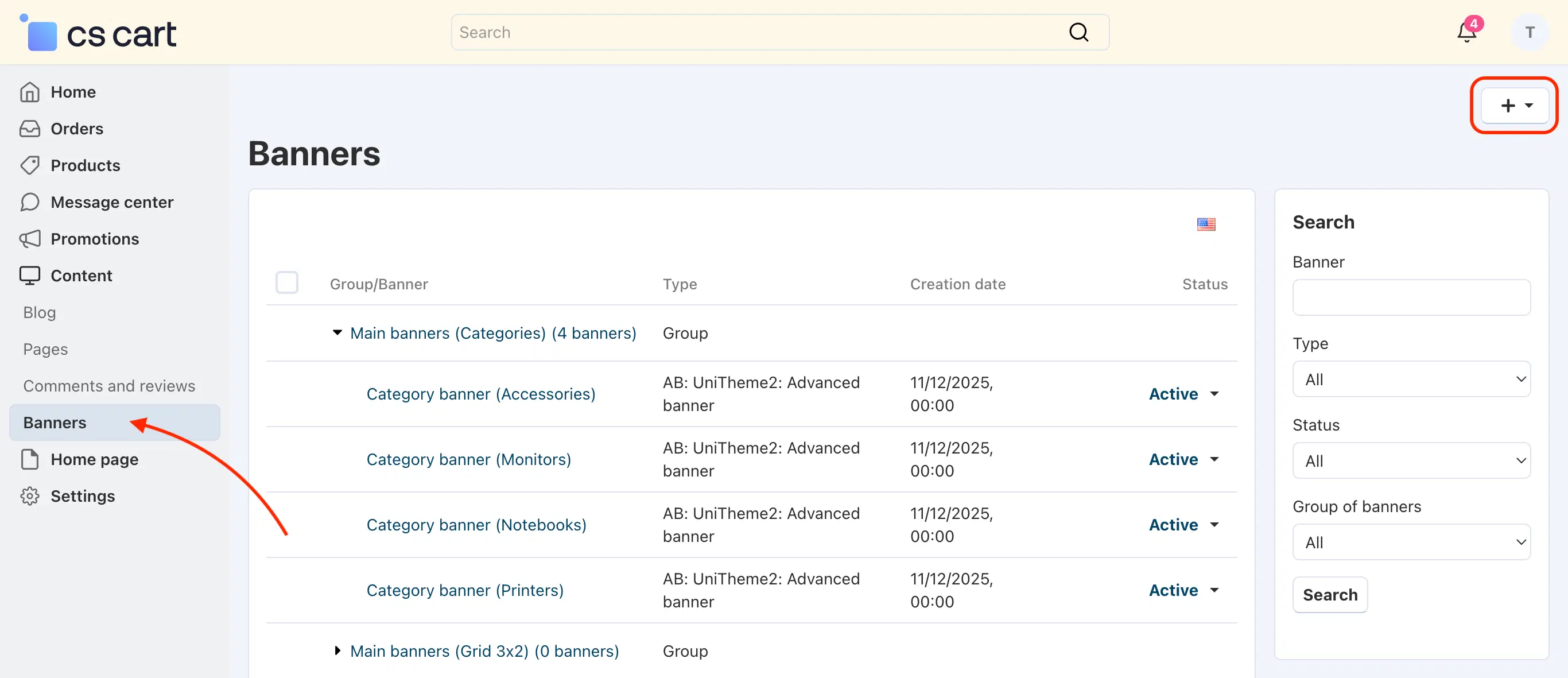
The vendor can create both simple banners and complex marketing structures with products inside, combine them into sliders (scrollers), and create banner grids for navigation through their categories.
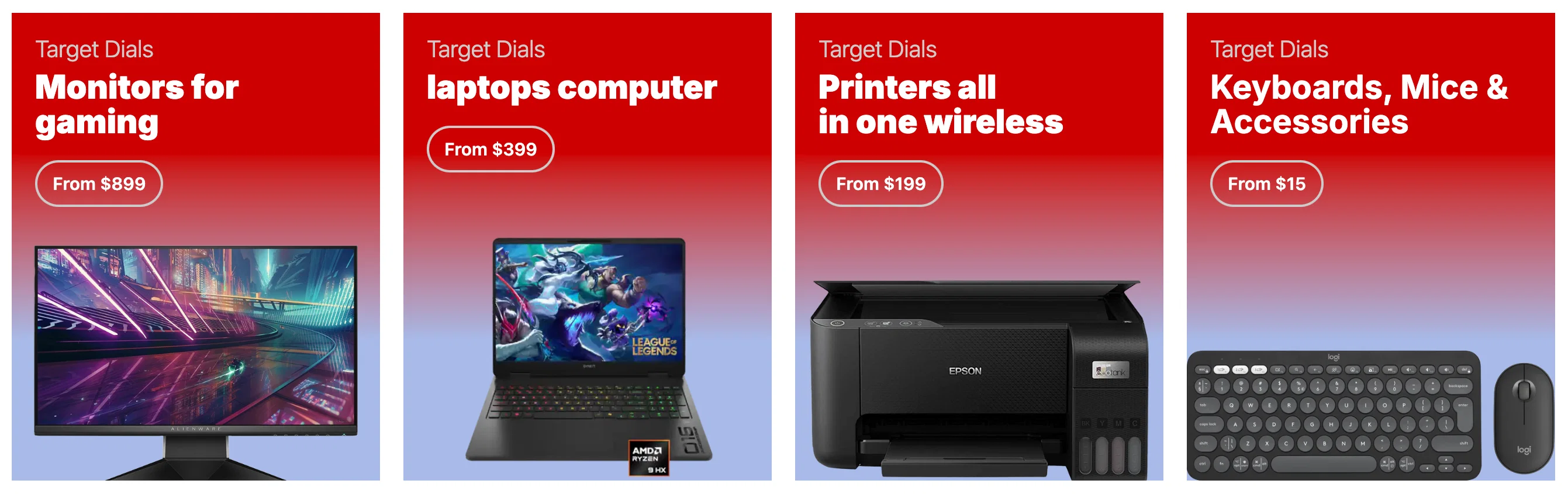
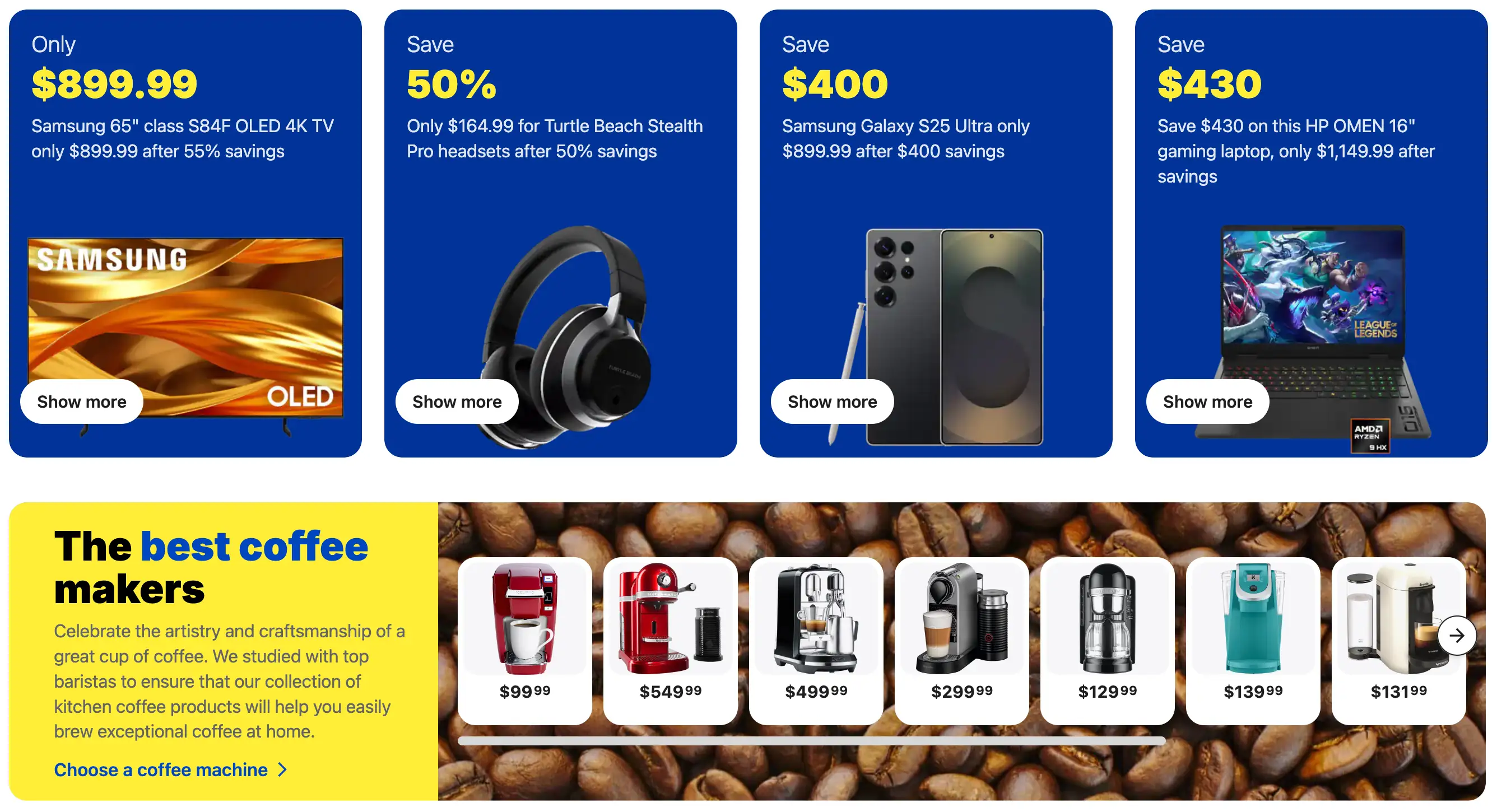
First Impression: Creates a "Wow factor" and broadcasts the brand level. The vendor looks like a major professional player, not a small trader. Allows directing traffic to priority categories or new seasonal items from the first seconds of the visit.
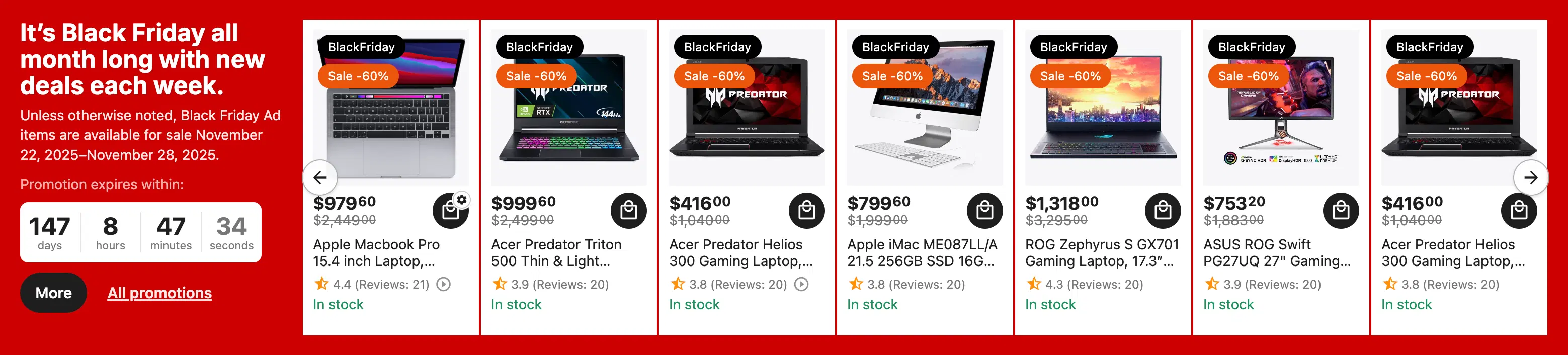
Marketing promotions and urgency triggers (Promotions and Product of the Day)
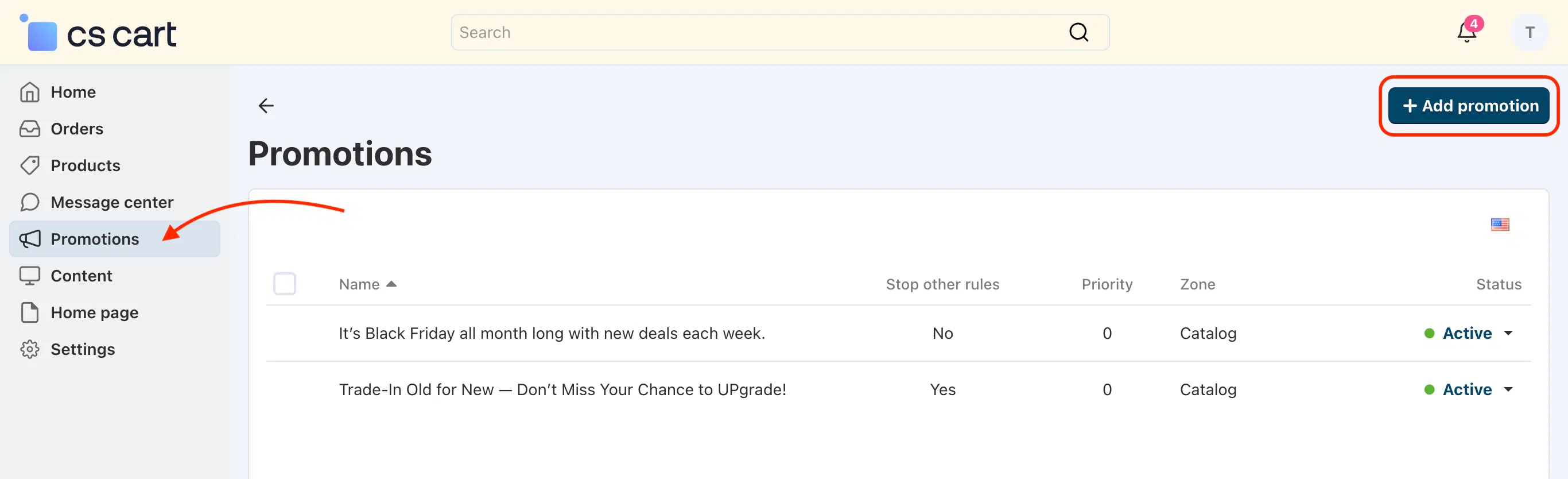
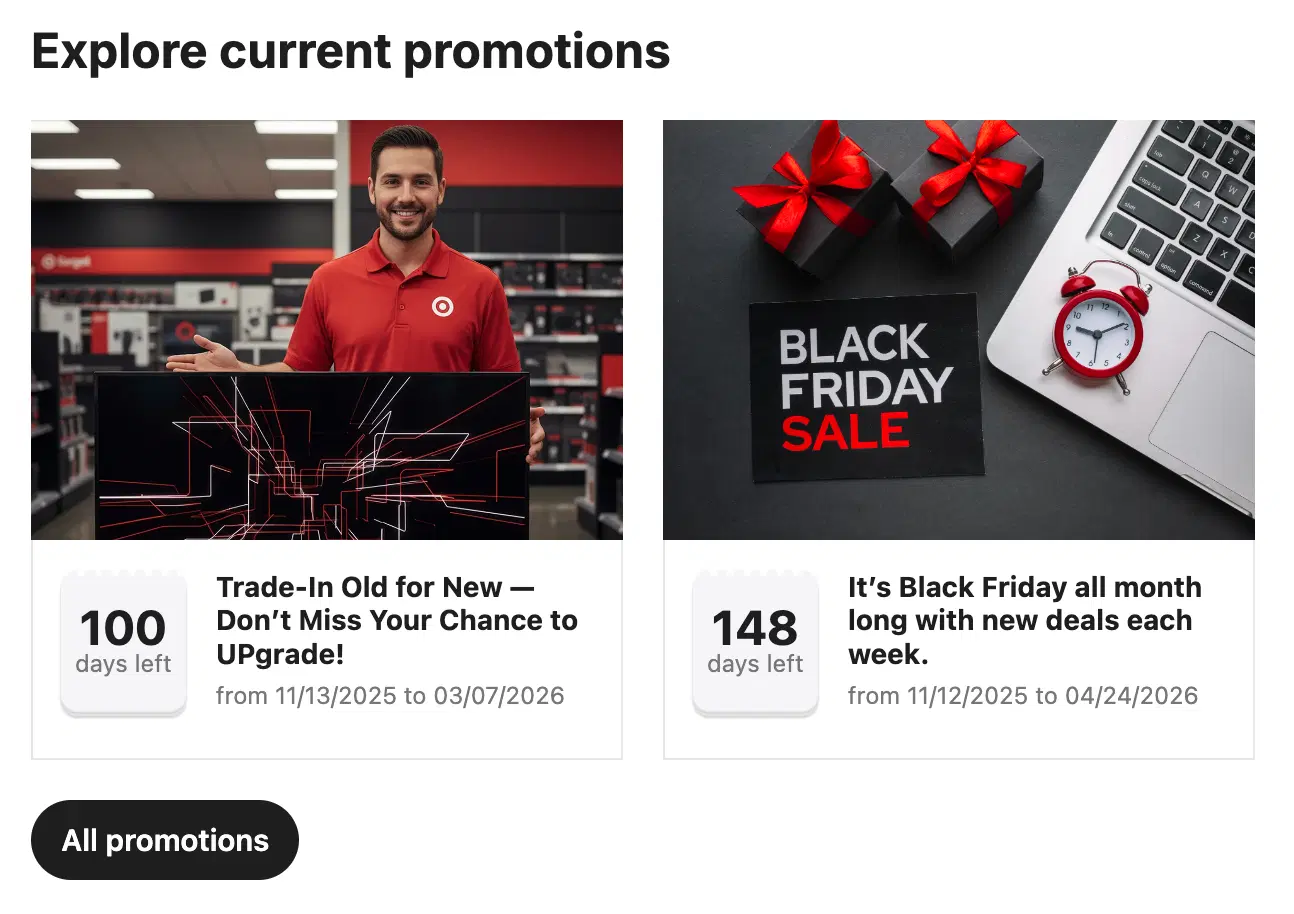
The vendor can create their own promotion pages and display their announcements on their homepage. "Product of the Day" block with a countdown timer and a selection of promotional products.
Content marketing and expertise (Vendor blog)
Displaying the latest articles from the vendor's personal blog. Blog articles (reviews, buying guides) show that the vendor understands the niche. Clients are more willing to buy complex equipment from experts.
SEO within the platform: Unique content helps the vendor's page rank better.
Custom blocks (HTML/Text)
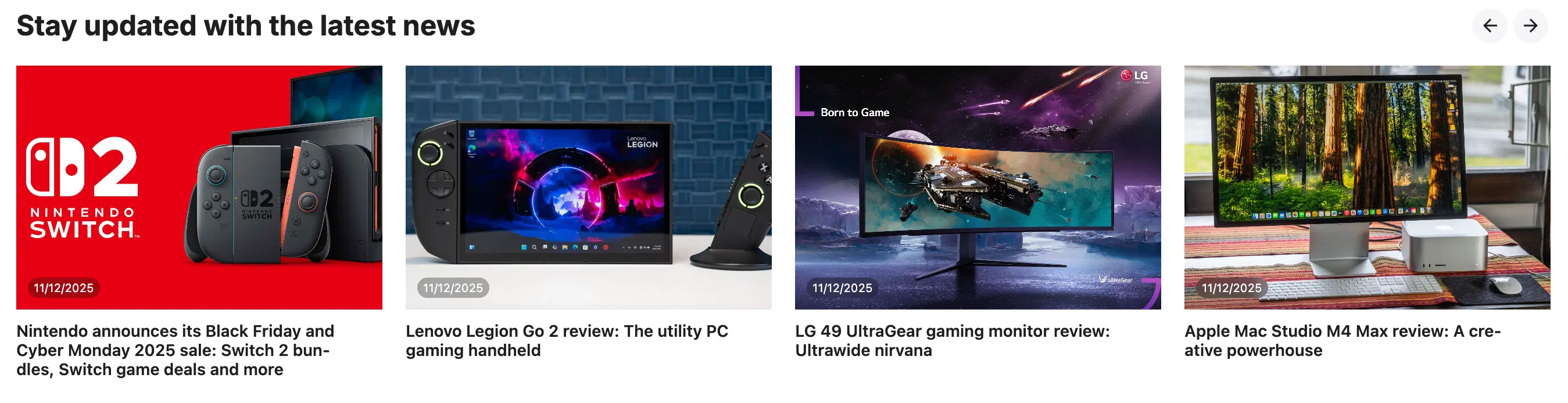
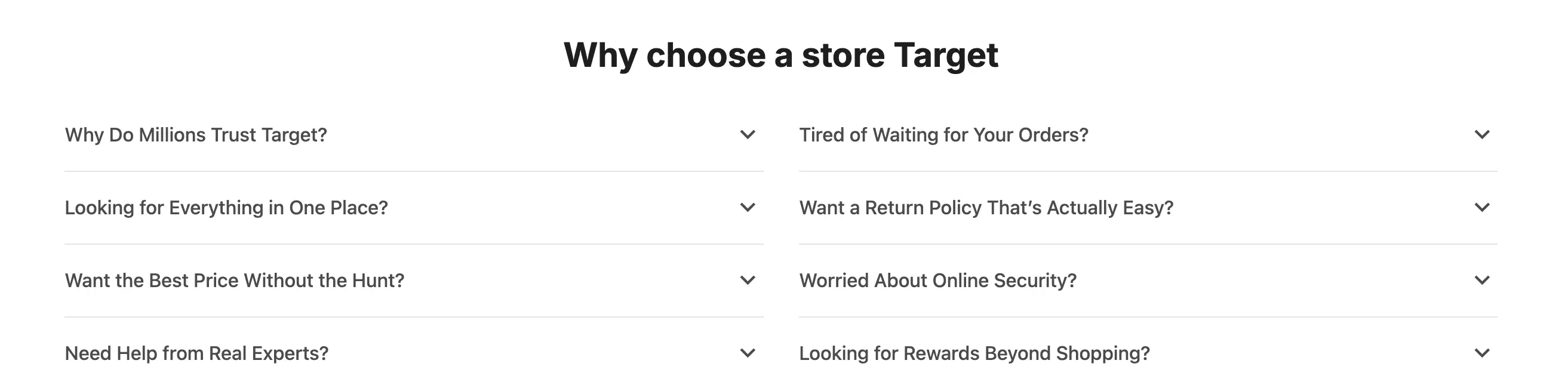
Blocks with arbitrary content where the vendor can write about their advantages, warranty conditions, answers to frequently asked questions.
Vendor reviews page
This page is a critically important element of the trust ecosystem on the marketplace, separating the reputation of the product from the reputation of the one selling it.
This specialized page accumulates feedback from buyers concerning exclusively the experience of interacting with a specific vendor. Unlike product reviews, service is evaluated here: delivery speed, packaging quality, communication adequacy, problem resolution with returns and warranty cases.
The page does not look like a "general section of the site". It is wrapped in the vendor's branded block (logo, rating, contacts), preserving the context of their storefront and providing convenient navigation.
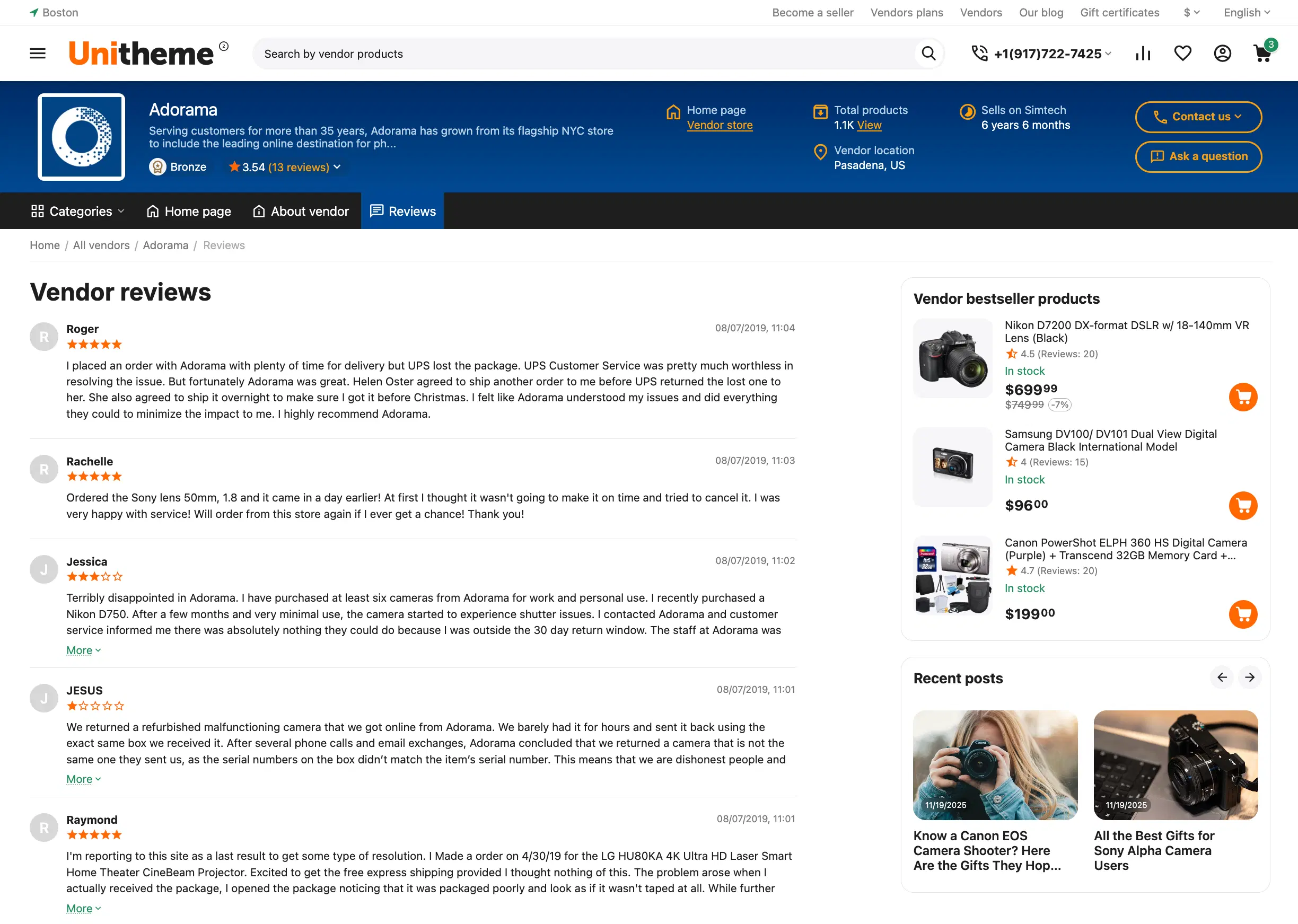
On the right is a functional column that works for retention and up-selling for this specific vendor:
-
Vendor bestseller products
A block with the most popular products of this specific vendor with quick "add to cart" buttons. -
Recent posts
A block with the latest entries from this vendor's blog, demonstrating their expertise.
Ecosystem Self-Regulation: The vendor review system forces sellers to maintain a high level of service, as a poor reputation is visible to everyone and directly affects sales. This reduces the load on the marketplace's own support service, as vendors are motivated to solve customer problems independently.
Common products for vendors
We have expanded the functionality of the Cs-Cart “Common Products for Vendors” addon, which allows you to create a unified product catalog. Vendors can select which existing products from the catalog they offer for sale.
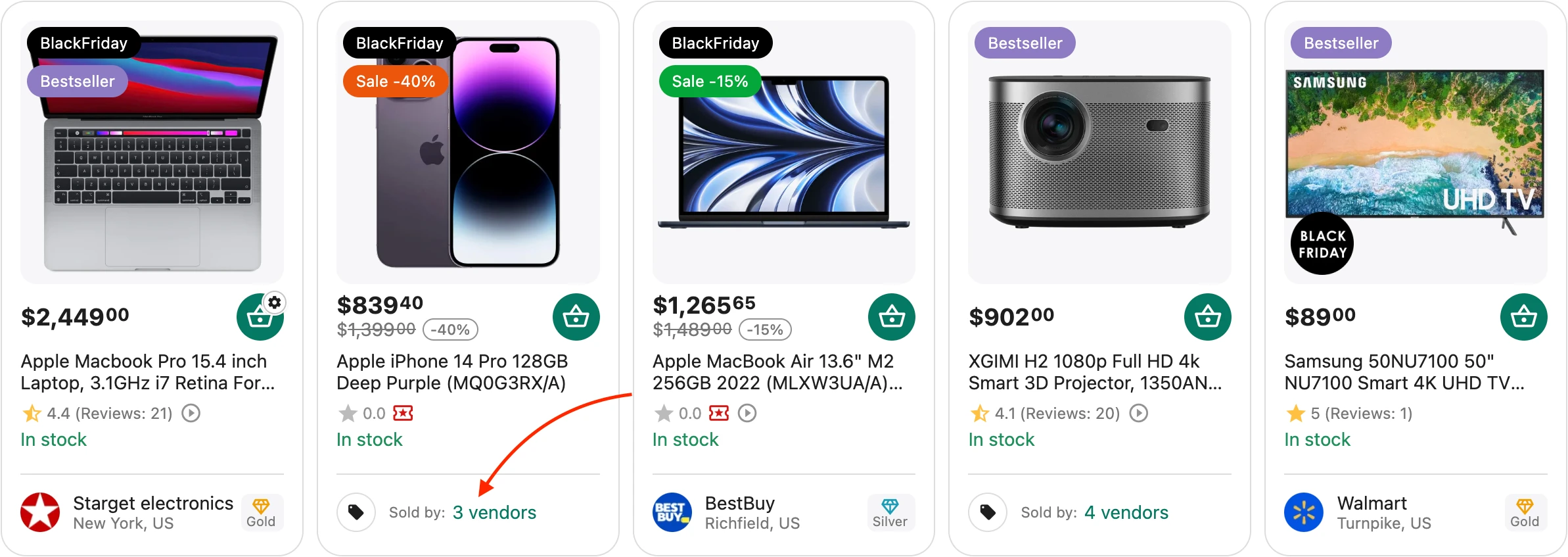
Across all major product listings, shared products are presented with a clear and thoughtful design, including an indication of how many vendors offer a given product.
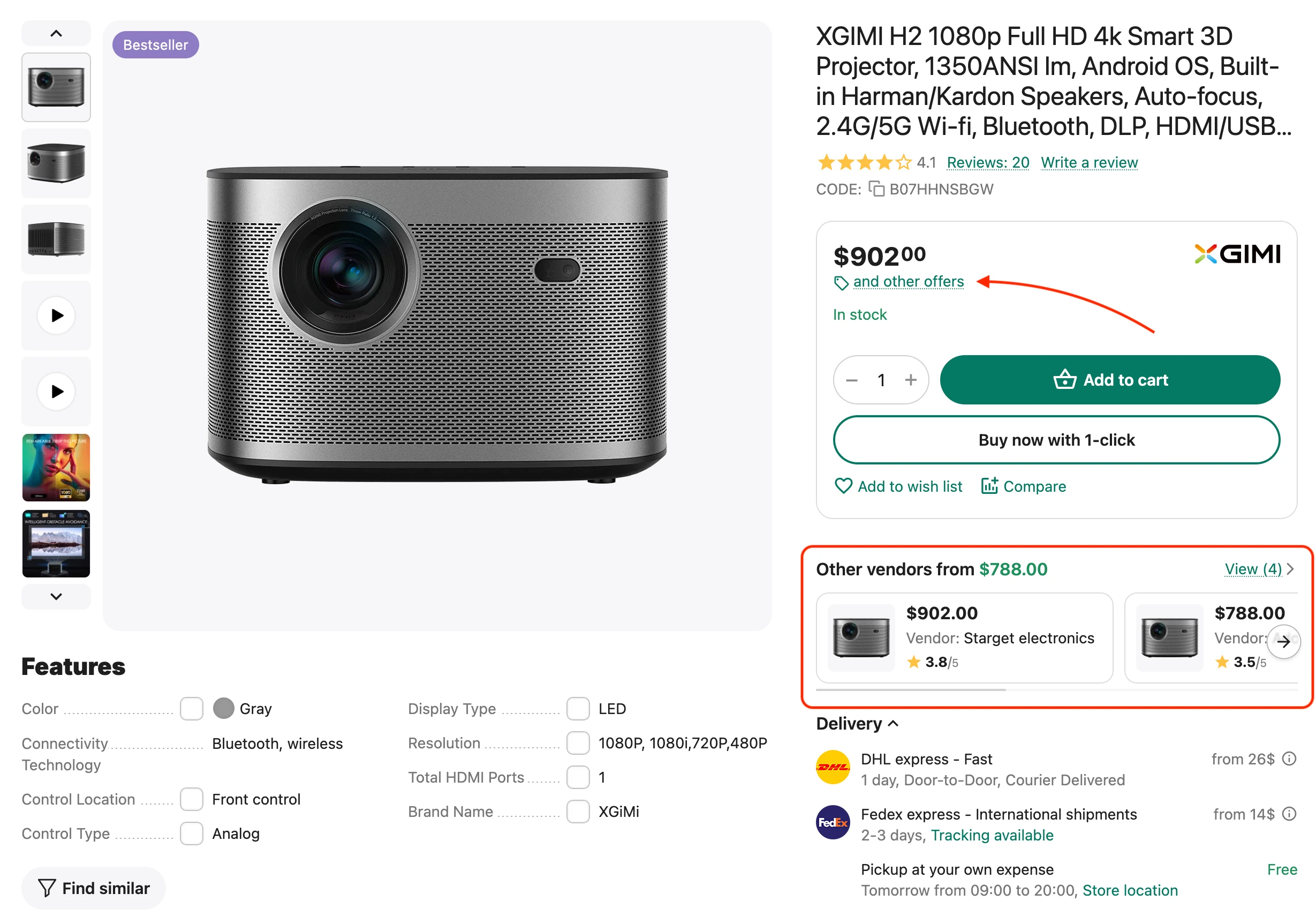
On the shared product page, in the area of maximum user attention (next to the price, availability, and the “Buy” button), there is a compact block displaying the list of vendors offering this product (a Buy Box–like solution). The block shows all vendors for the product, but not in a random order. Vendors are ranked using a prioritization system. The primary sorting criterion is the vendor rating, calculated by the “Vendor Rating” module based on multiple metrics (number of products, number of orders, reviews, activity, subscription plan, and other indicators). If vendor ratings are equal or unavailable, sorting is performed by product price.
This block serves as the main point for selecting a vendor. When a user clicks on a specific offer within this block, the product page is reloaded with the selected vendor’s offer set as active, and all further actions (purchase, adding to favorites, product inquiries, and more) are performed within the context of that vendor.
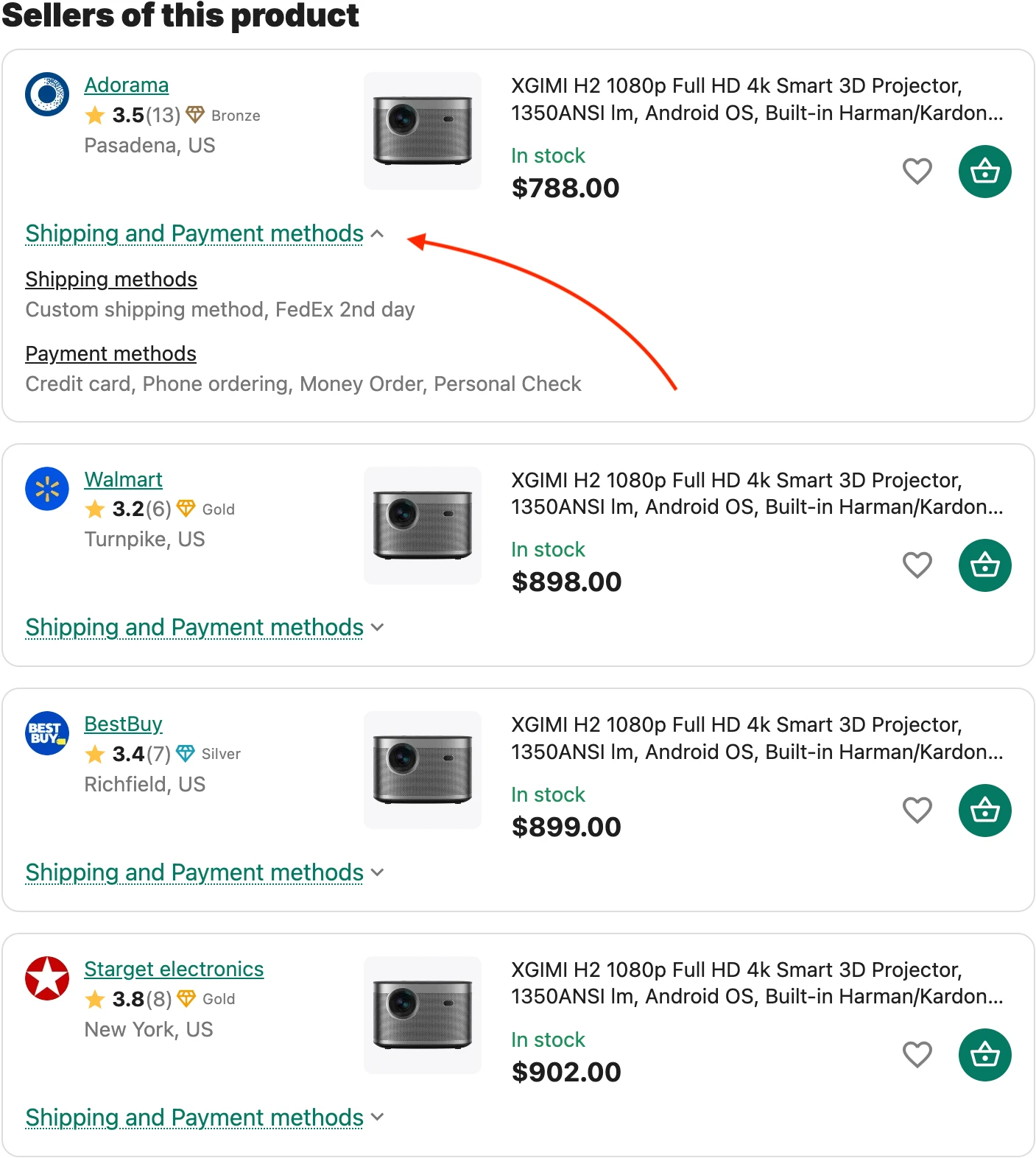
Vendors of this product — an extended block with the full list of offers for this product
In the full list of vendors, the user can see detailed information for each offer: vendor rating, location, product price and availability, as well as individual delivery and payment conditions. This allows offers to be compared not only by price, but also by service quality and logistics.
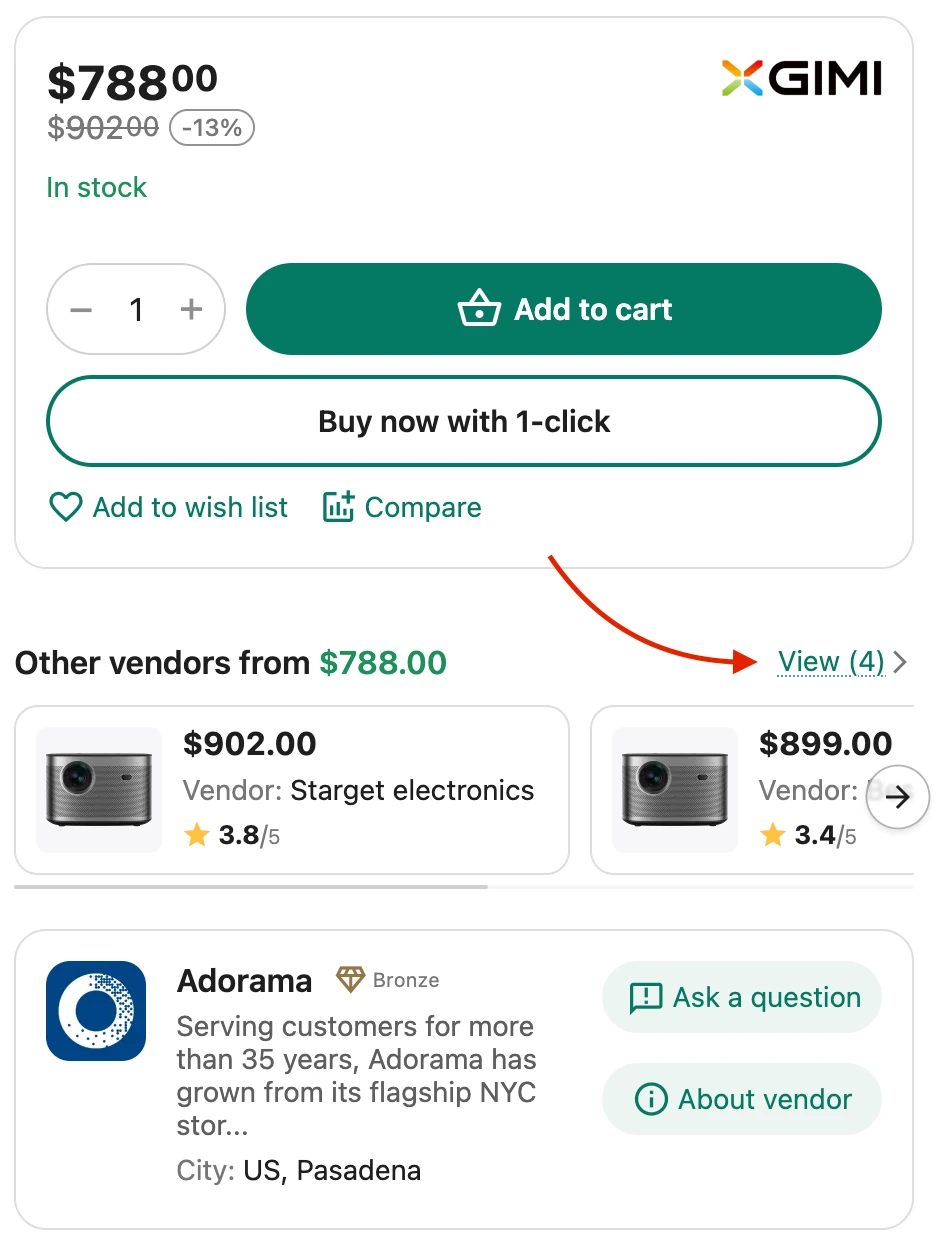 * The block includes a navigation link showing the number of vendors offering this product. Clicking this link scrolls the page to the extended block with all vendor offers.
As a result, users first get a fast, prioritized choice through the Buy Box, and when needed, a complete overview of all available offers for the product, allowing them to make a confident and informed purchase decision.
Unitheme2 Multivendor 4.19.1.a update — an investment in dales growth
Updating Unitheme2 MV to version 4.19.1.a is not just a design improvement, it is a strategic transformation of your marketplace into a professional ecosystem. In conditions of fierce competition, sellers need tools to build their own brand within your platform, and buyers need transparency and trust.

Main benefits for the marketplace owner:
- Increasing trust and conversion of the entire platform. New branded blocks with vendor information in the catalog and on the product card remove the buyer's main fear — "buying from a stranger". Visual confirmation of the vendor's status and rating right at the moment of product selection significantly speeds up the purchase decision.
- Powerful monetization tool (Tariffs). Premium Vendor Homepage functionality (Shop-in-Shop) with banners, promotions, and blogs is the ideal killer feature for your expensive tariff plans. Give top sellers the capabilities of a full-fledged online store within your platform.
- Improved behavioral factors and UX. The interactive sidebar with vendor information allows the client to study the vendor without leaving the product card. This keeps the focus on the purchase and reduces the number of transitions that do not end in an order.
- Service quality self-regulation. A dedicated "Vendor Reviews" page clearly separates product reputation and service quality. This motivates vendors to improve logistics and communication, reducing the load on your own support service.
Ready to update your CS-Cart store?
By staying on the old version, you offer sellers just "shelf space". Updating to the current Unitheme version provides them with professional tools for business development, which attracts quality sellers, increases the assortment and, as a result, grows the total turnover (GMV) and your profit from commissions.